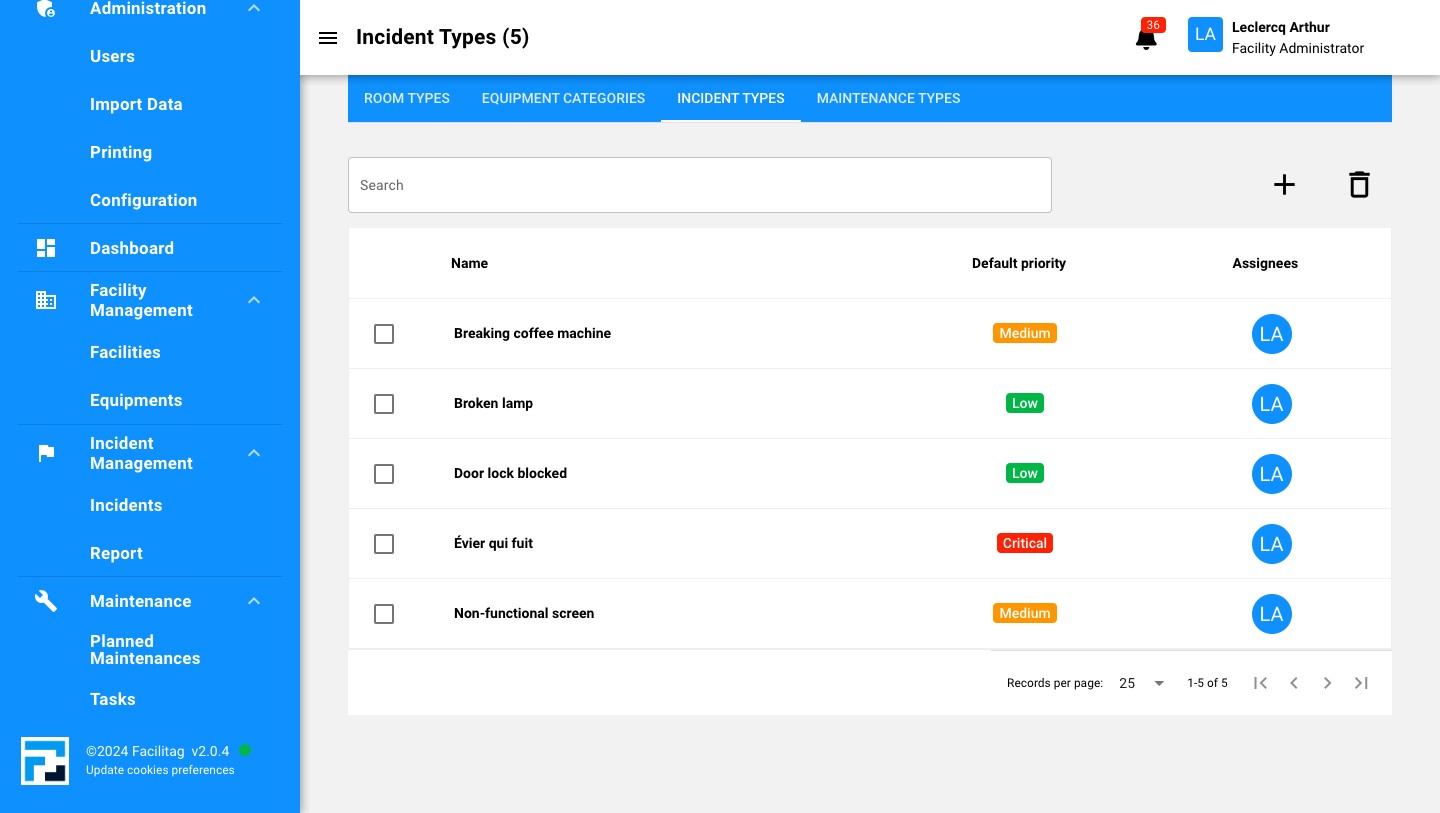
Configure Incident Type
How to create an incident Type
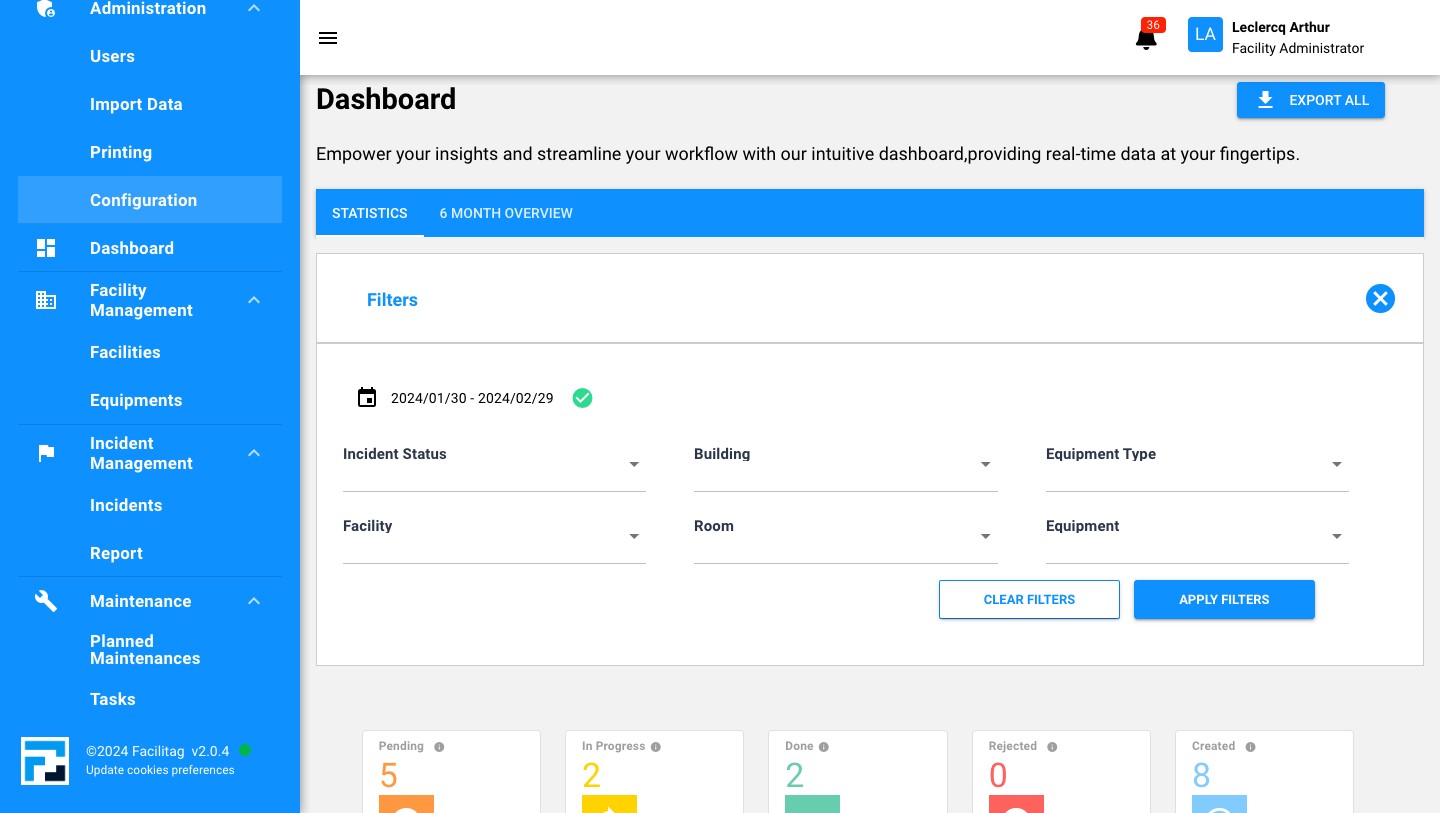
1
Click on "Configuration"
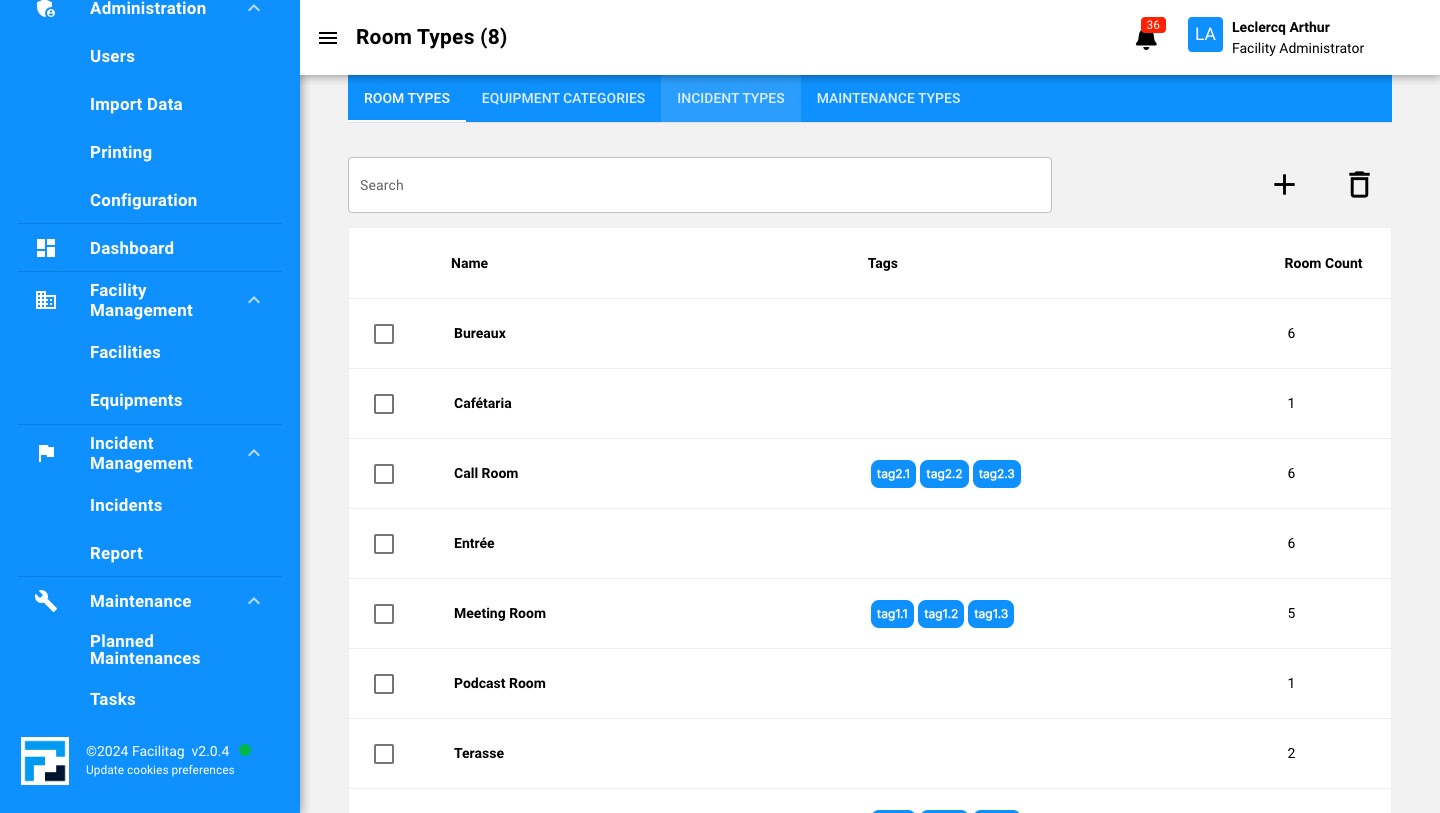
2
Click on "Incident Types"
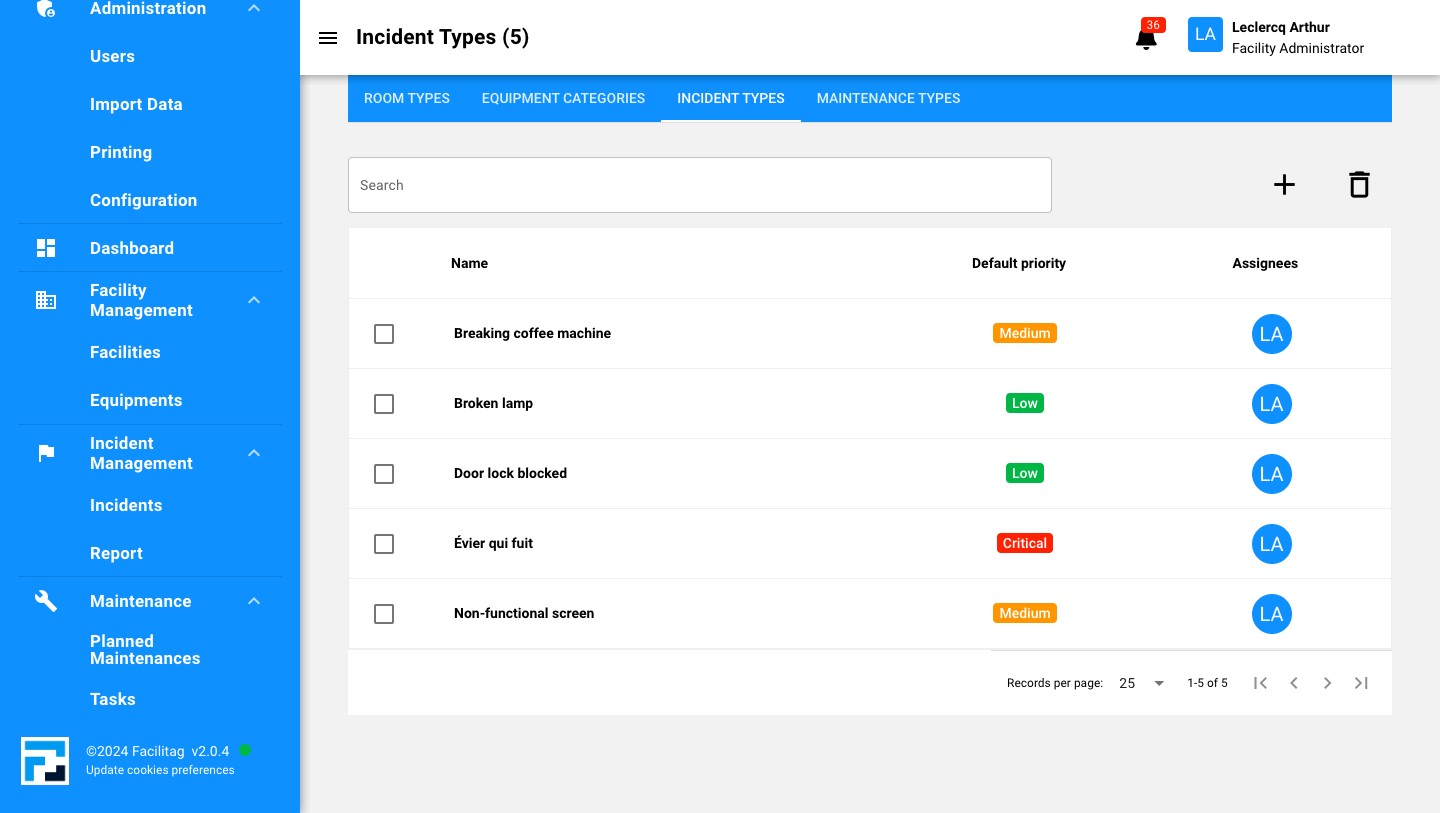
3
Click this icon
4
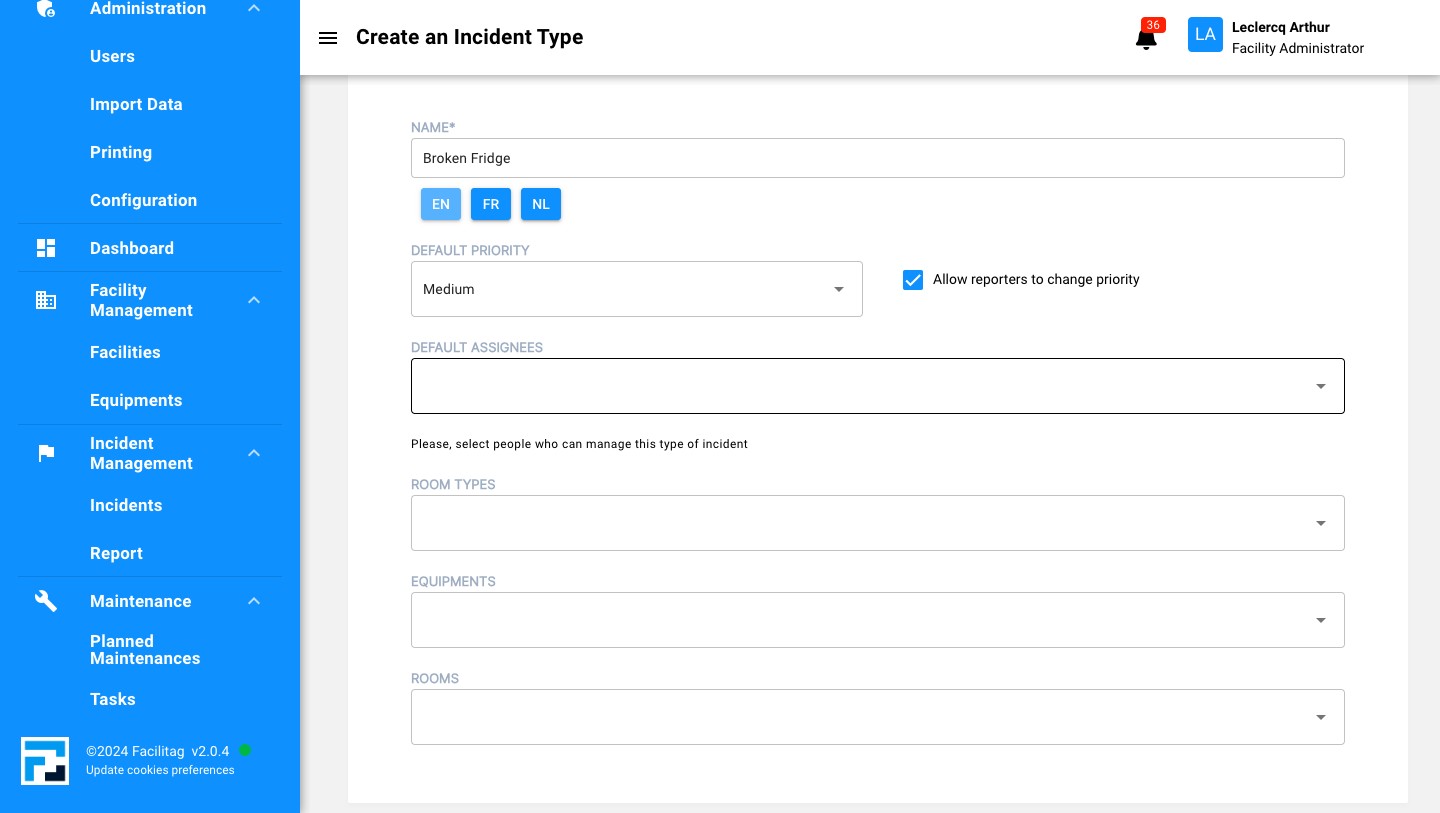
Give a name to the incident
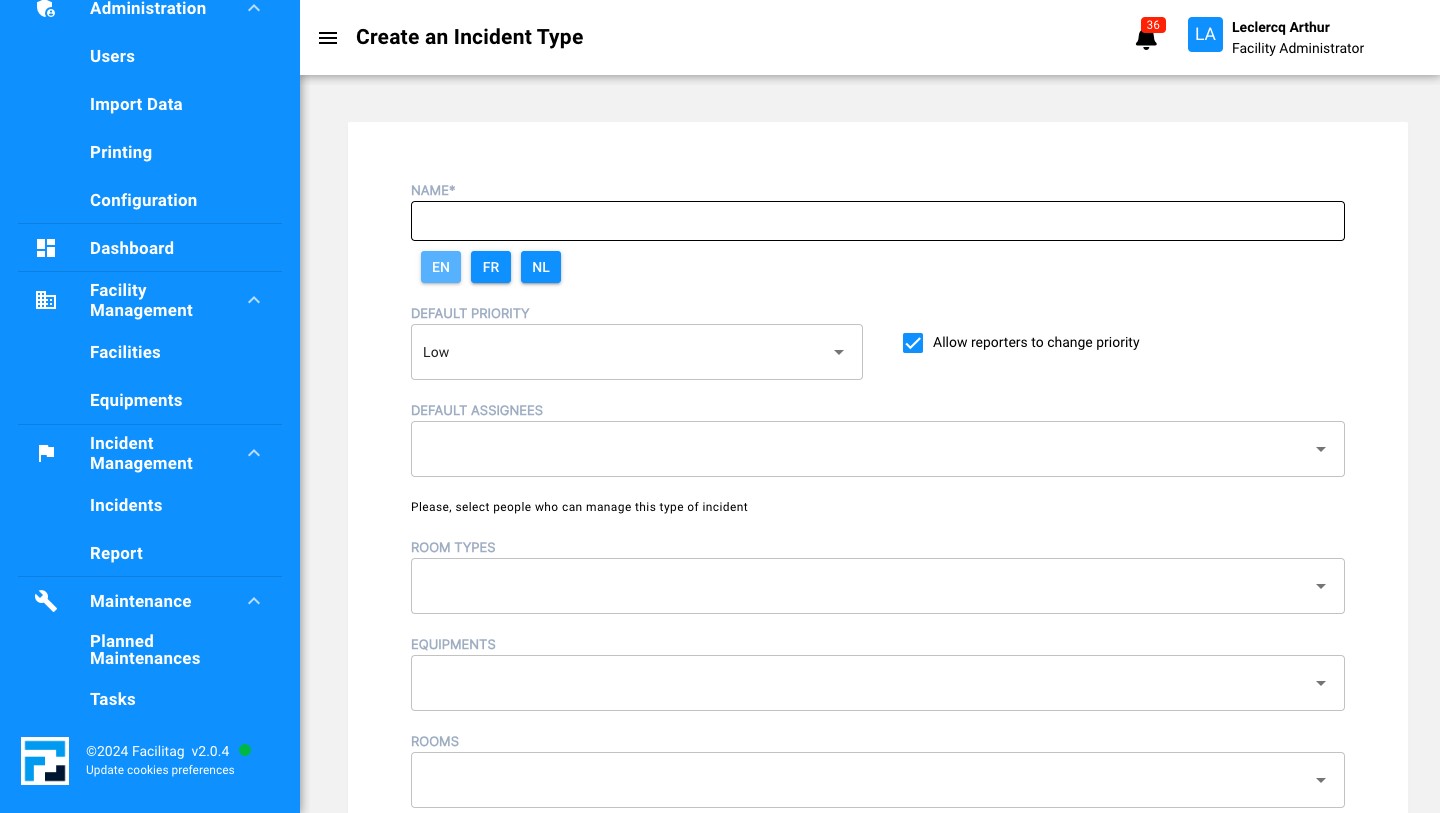
5
Choose the default priority
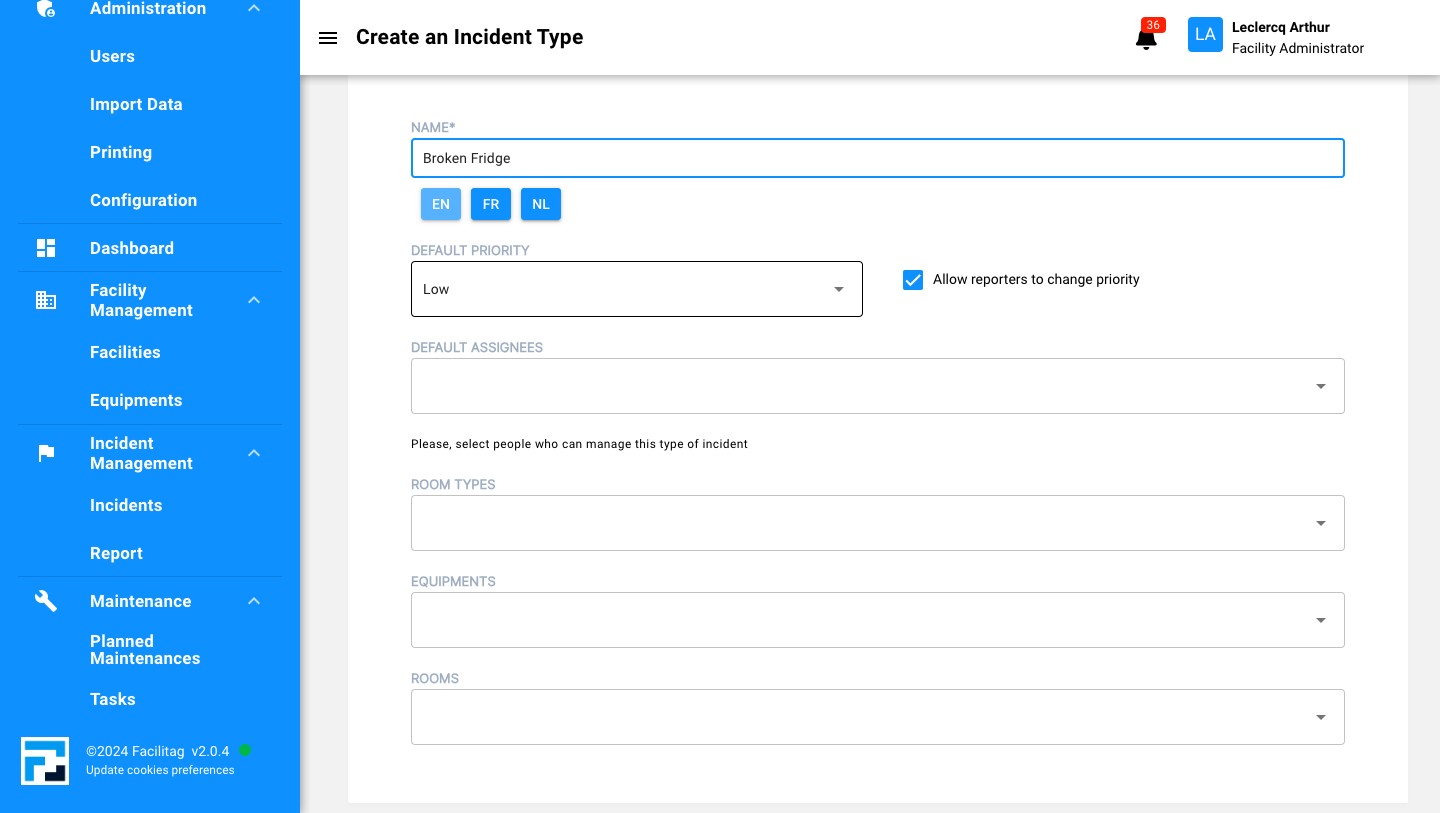
6
Select the wished priority
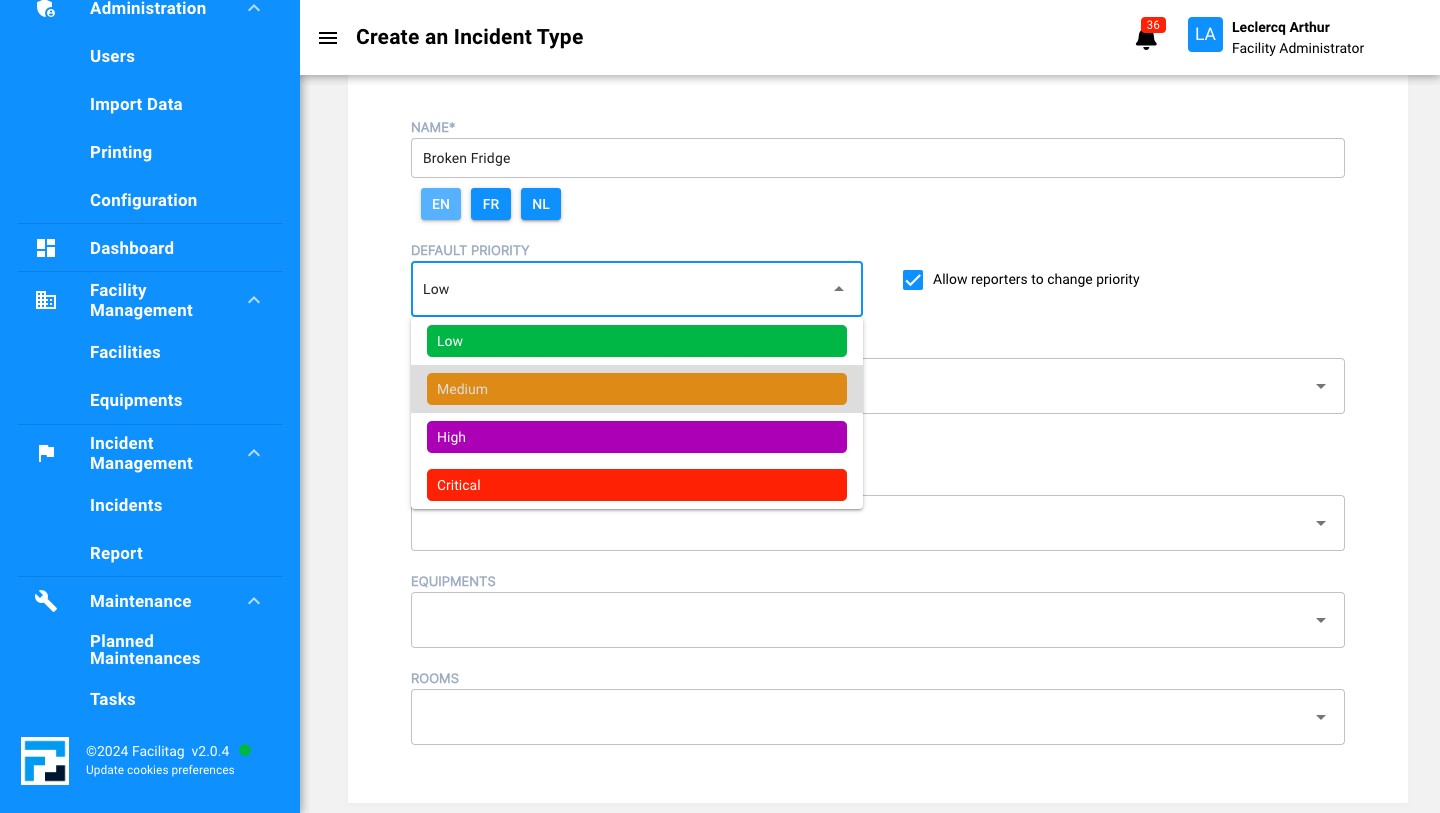
7
Click this icon to allow reporters to change priority or not
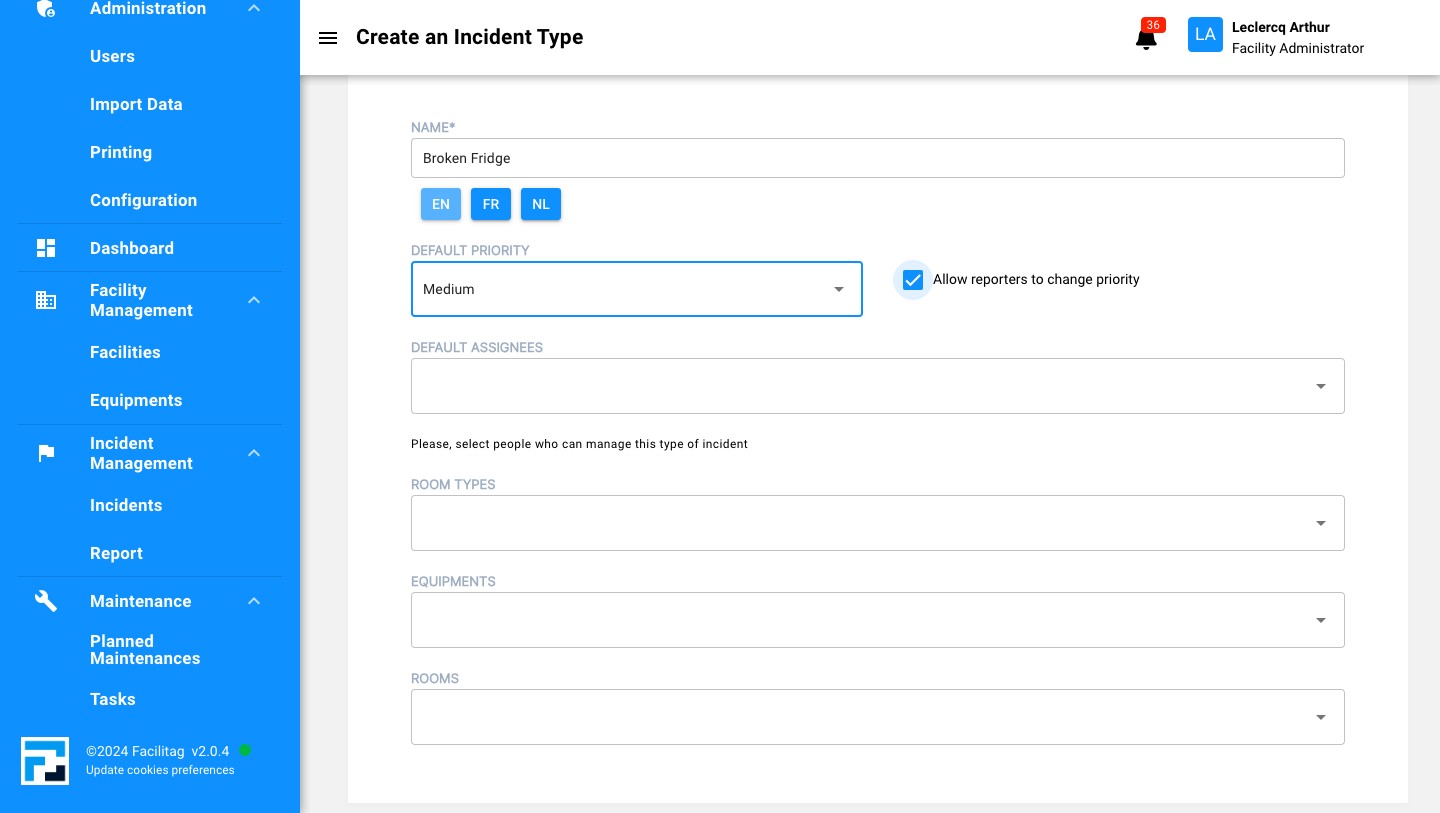
8
Choose a default assignee
9
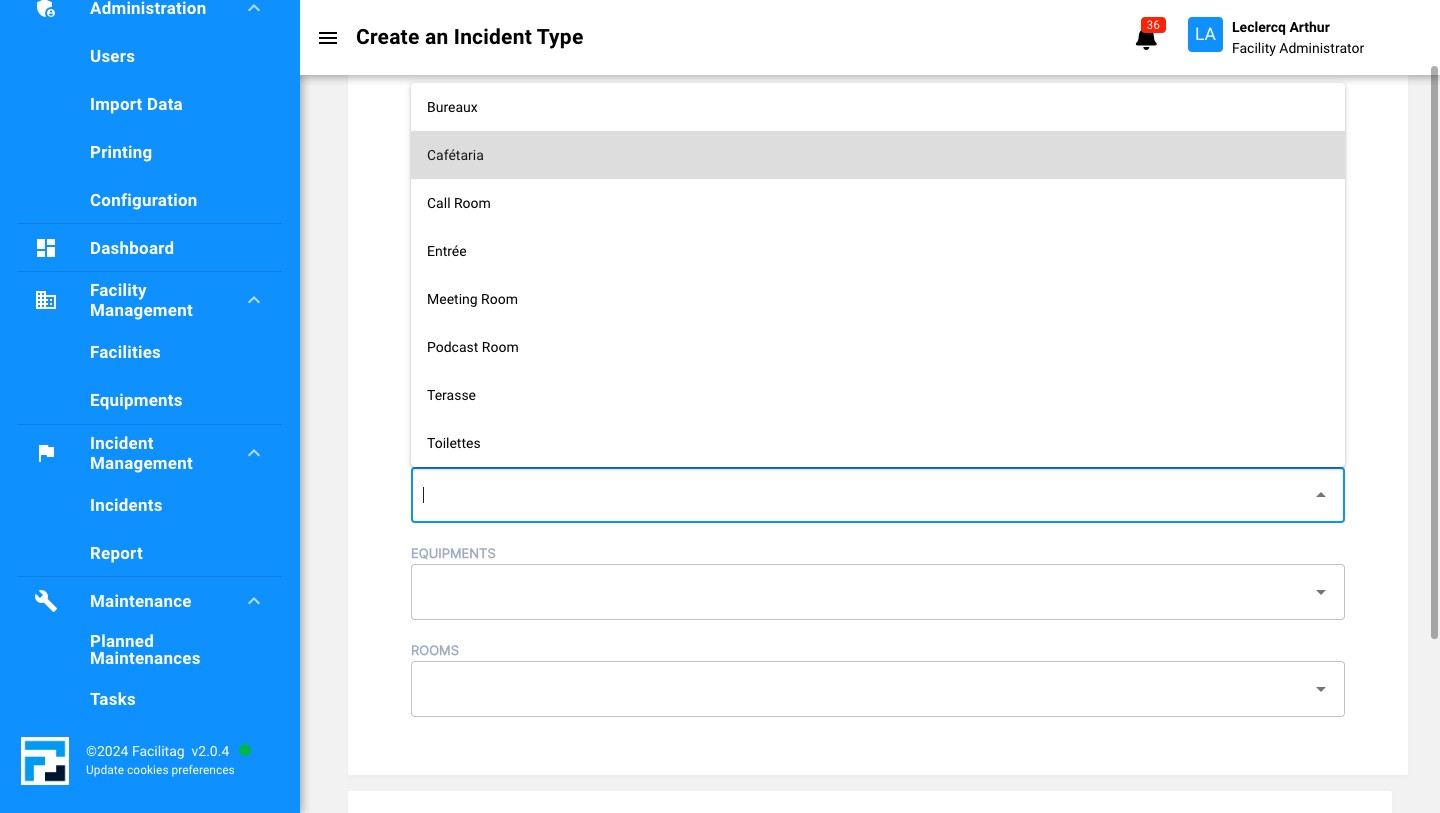
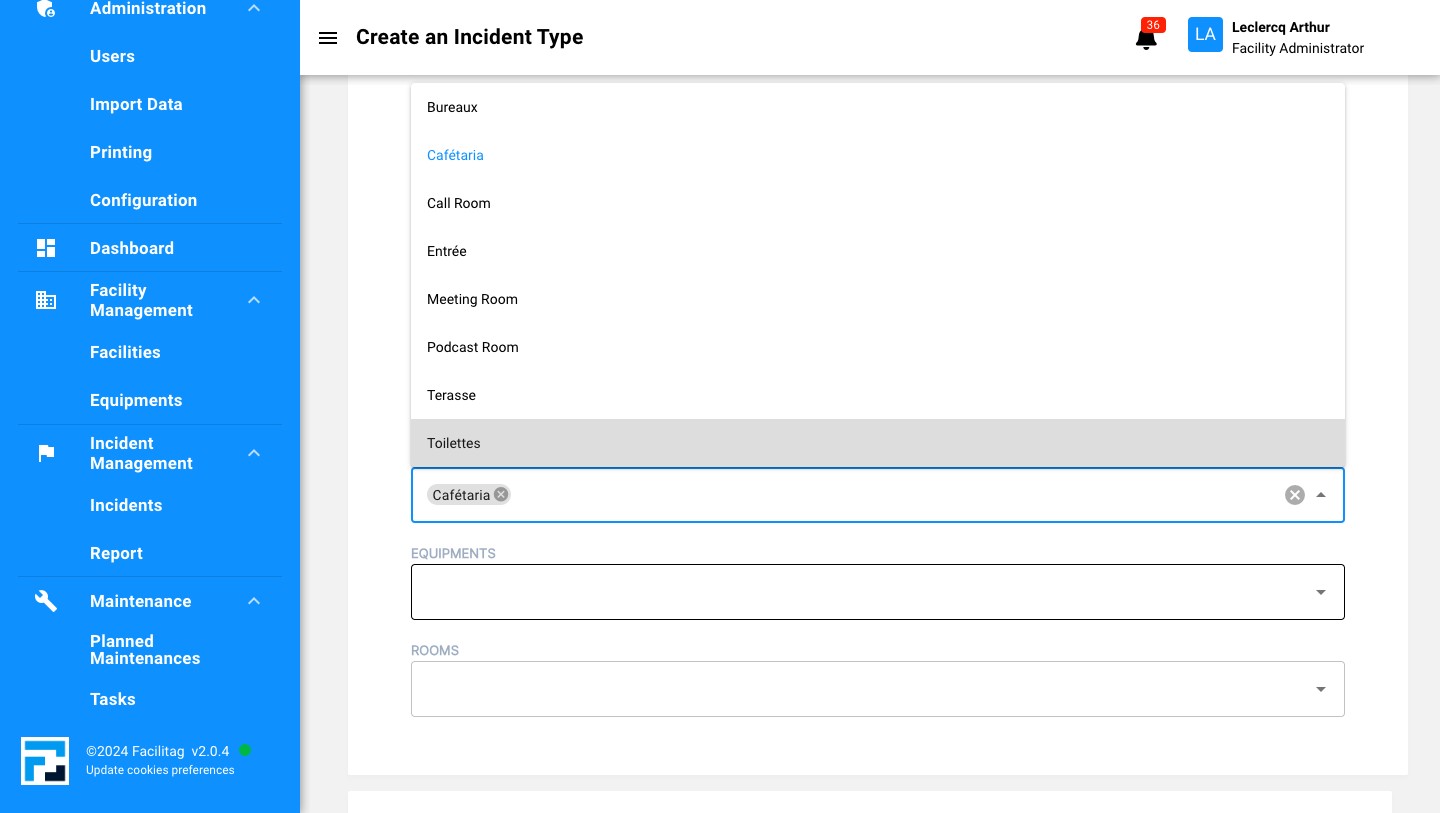
Select the room type linked to the incident
10
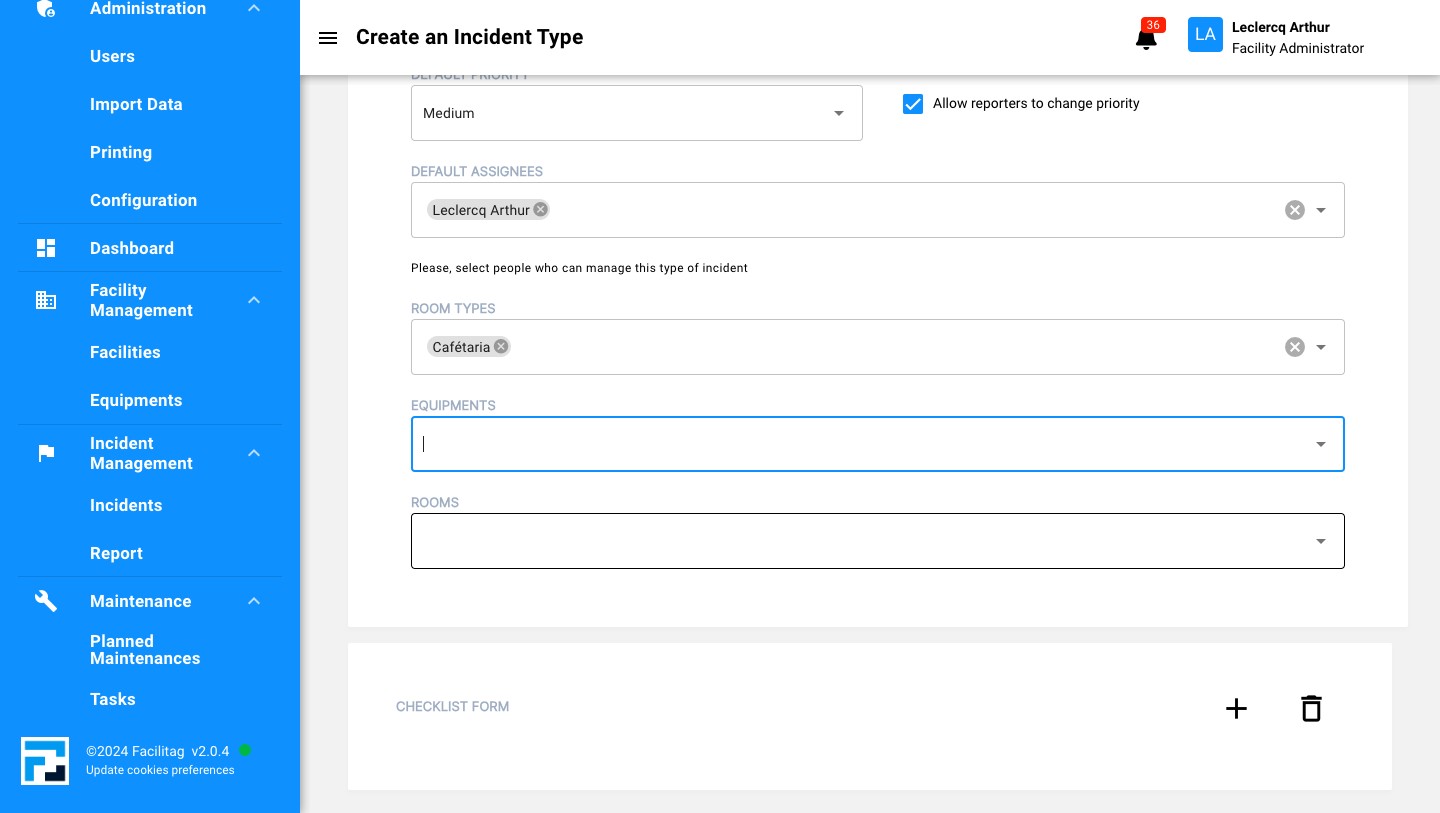
Link it with an equipement if needed
11
Or link it with specific rooms
How to add a checklist form
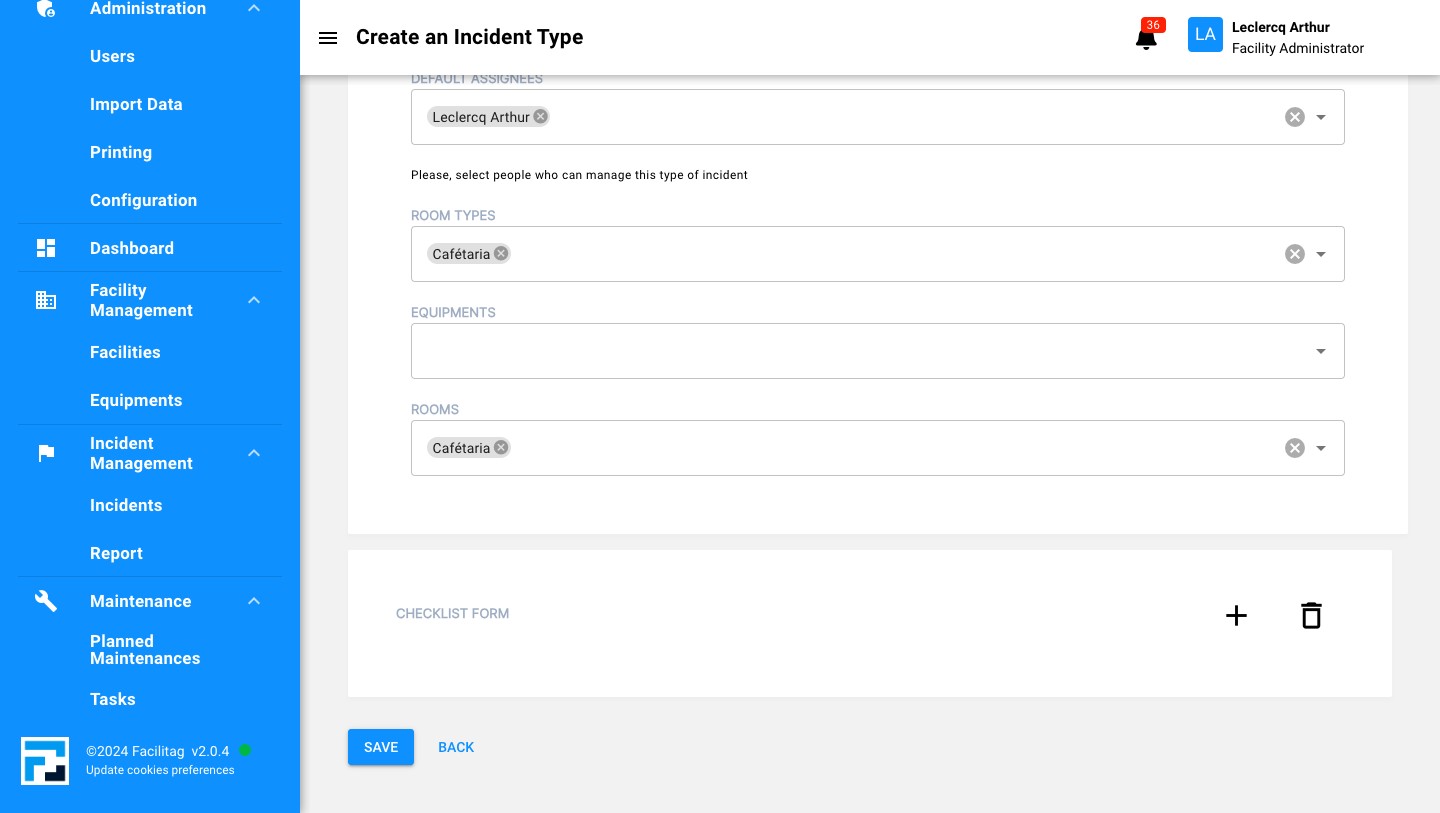
12
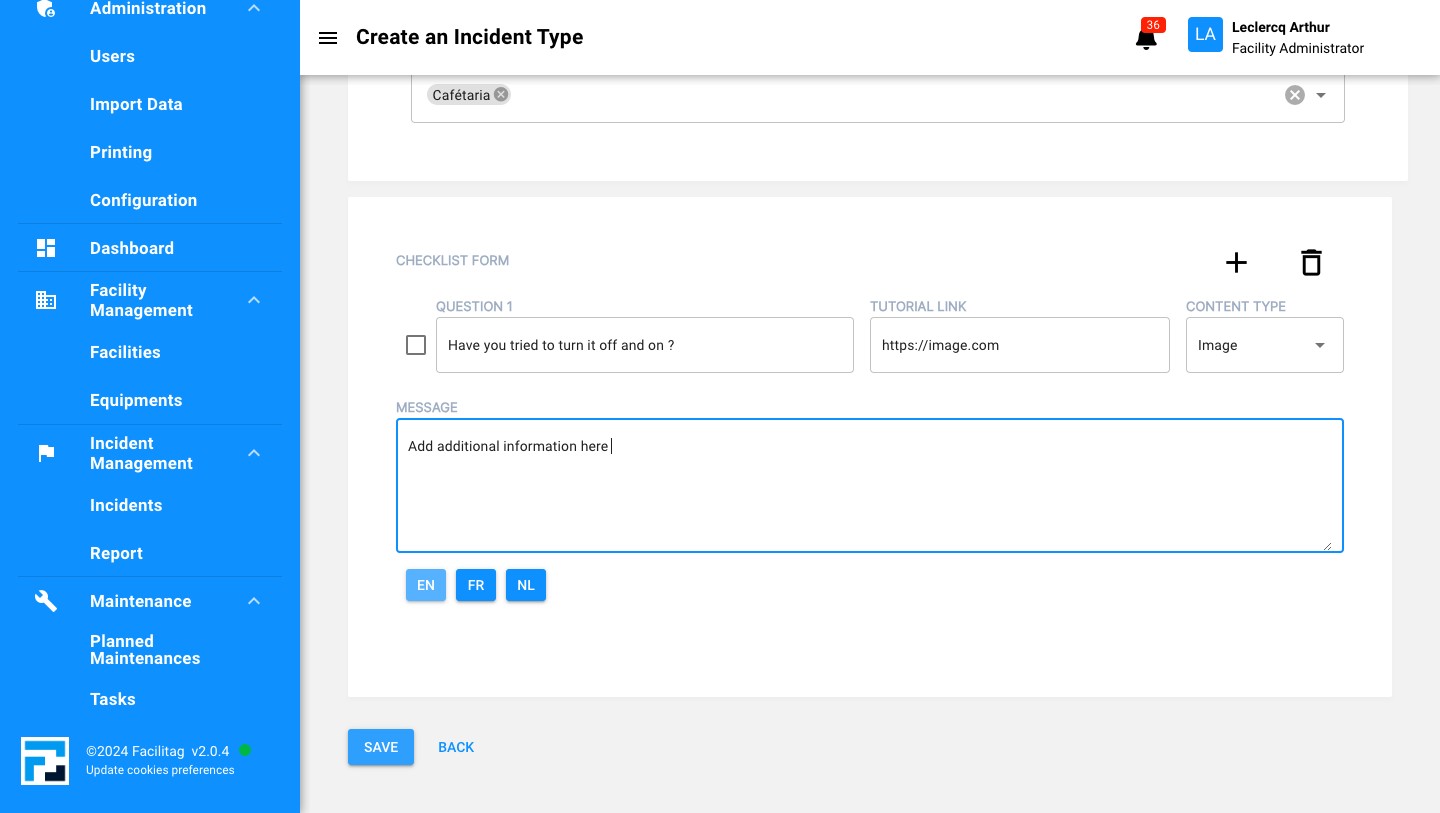
Click this icon to add a checklist form
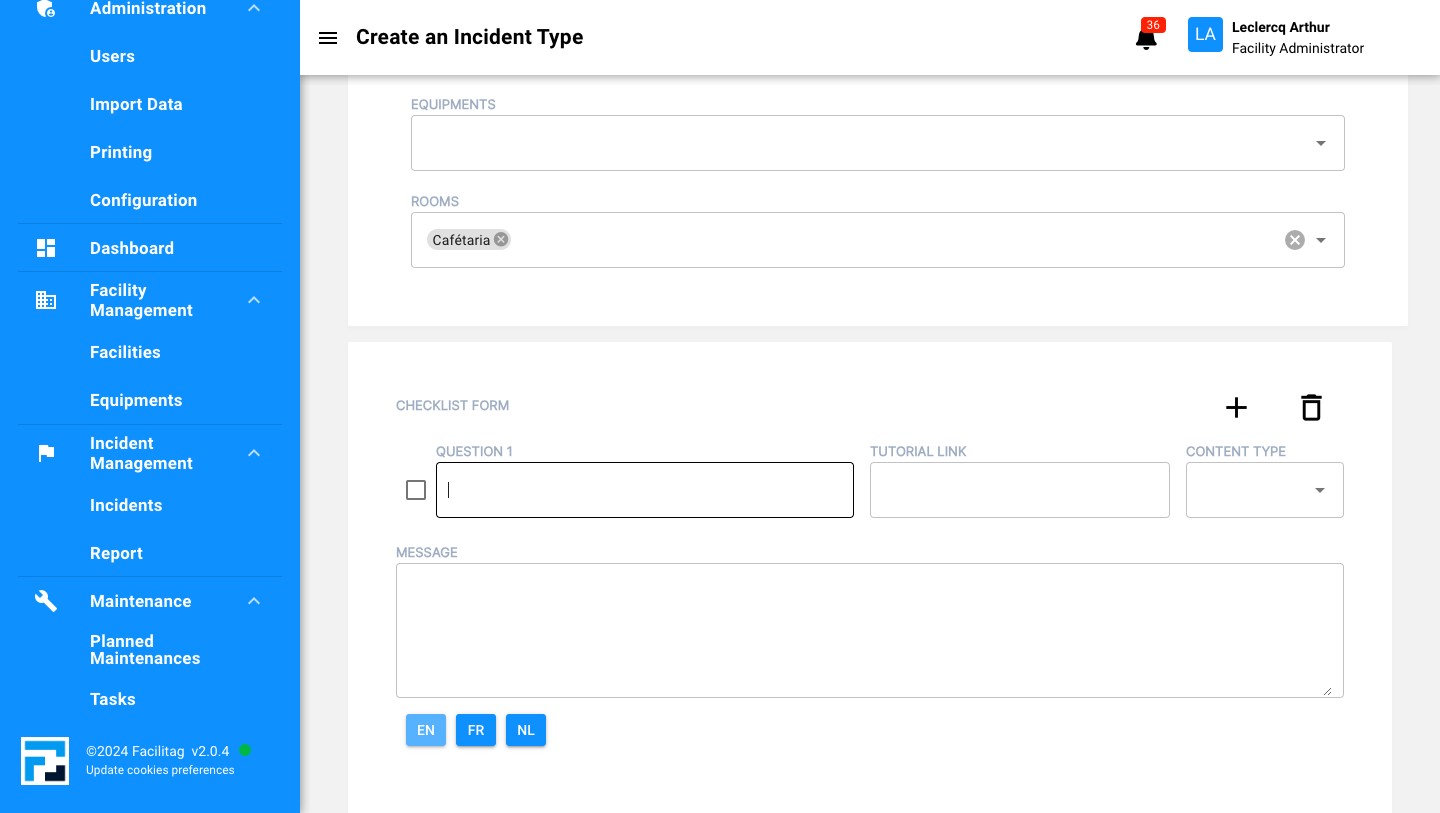
13
Write down any question
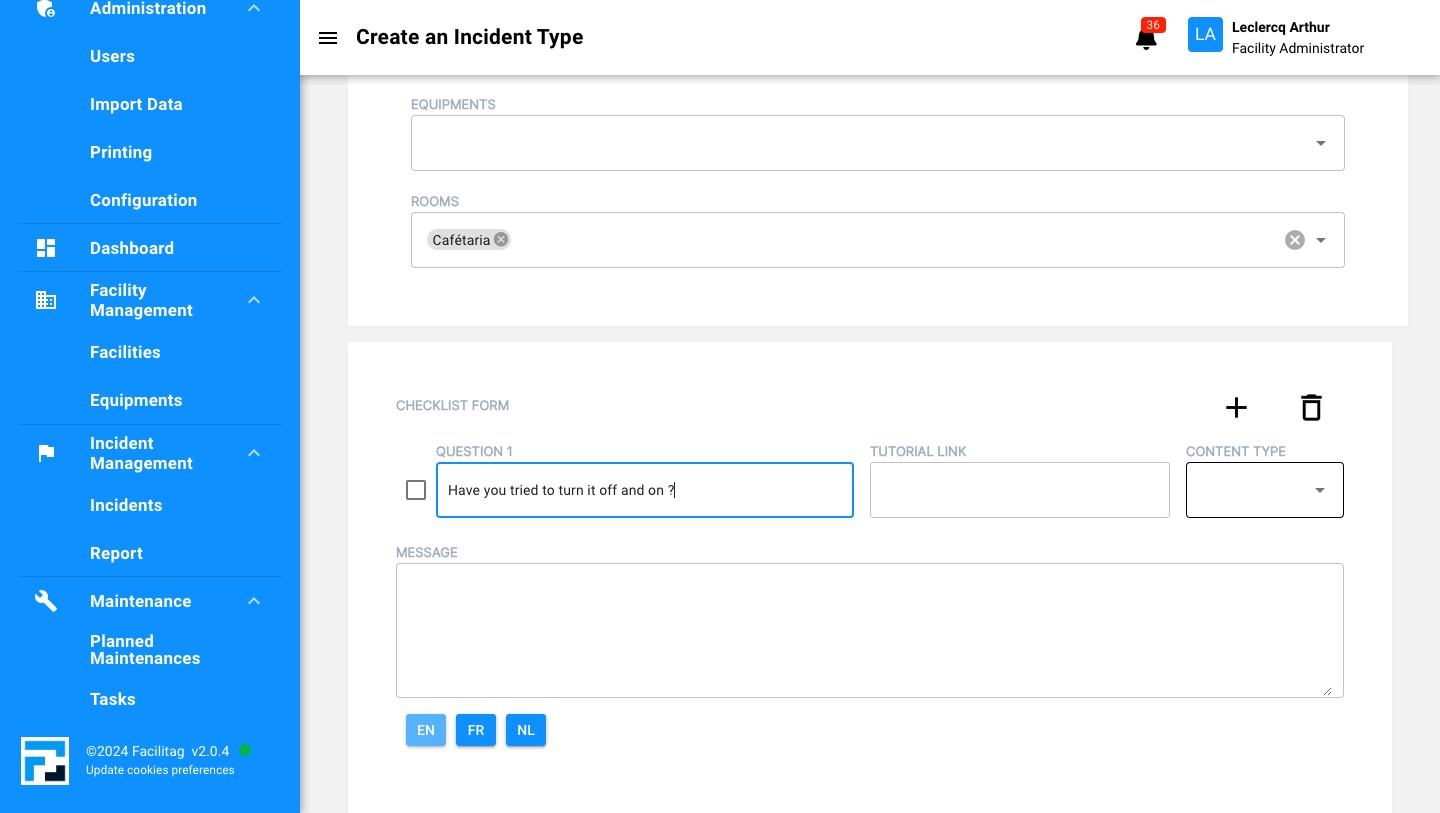
14
Add additional content
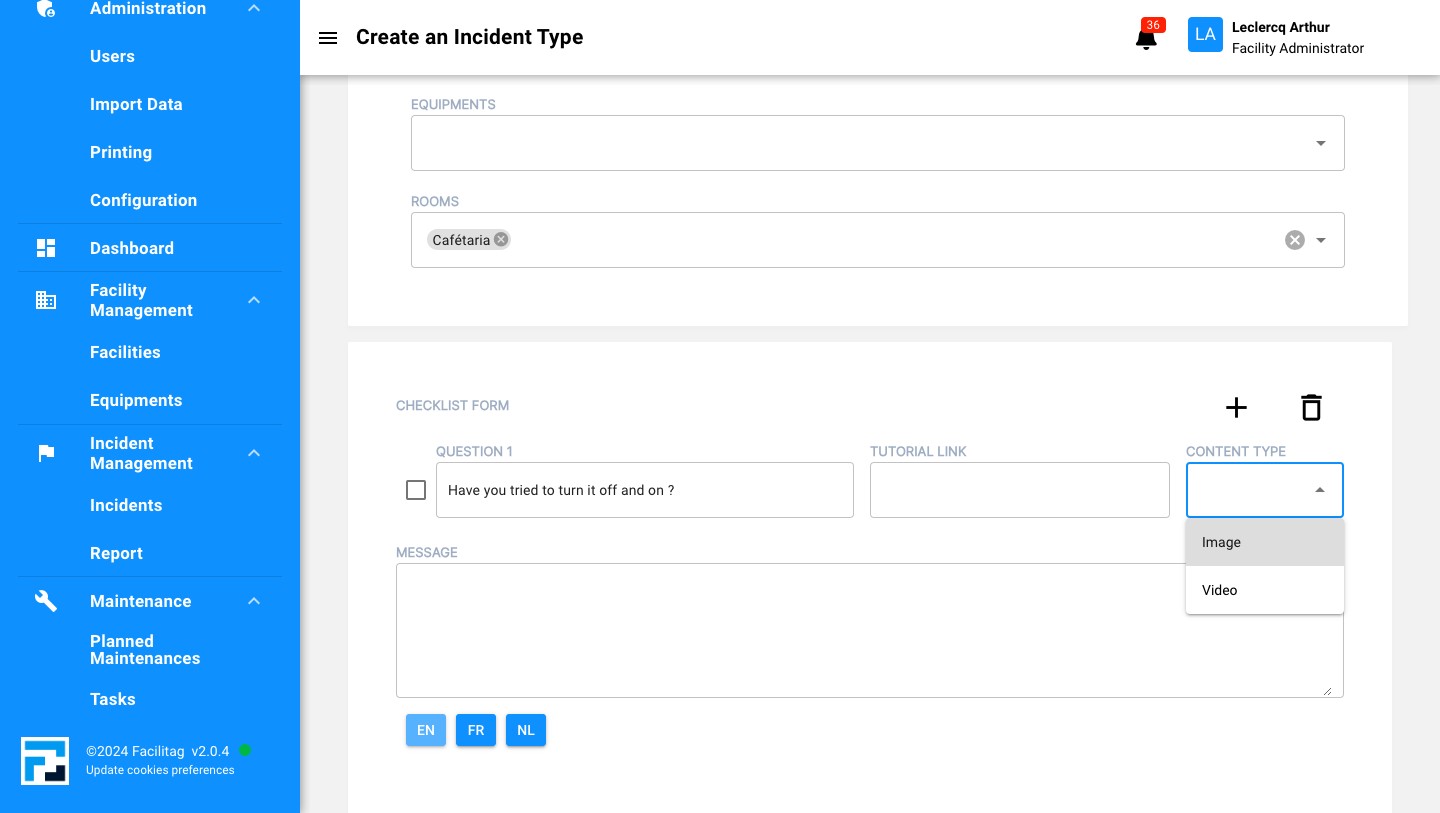
15
Select the content type
16
Add written information in the message box
How to delete incident type
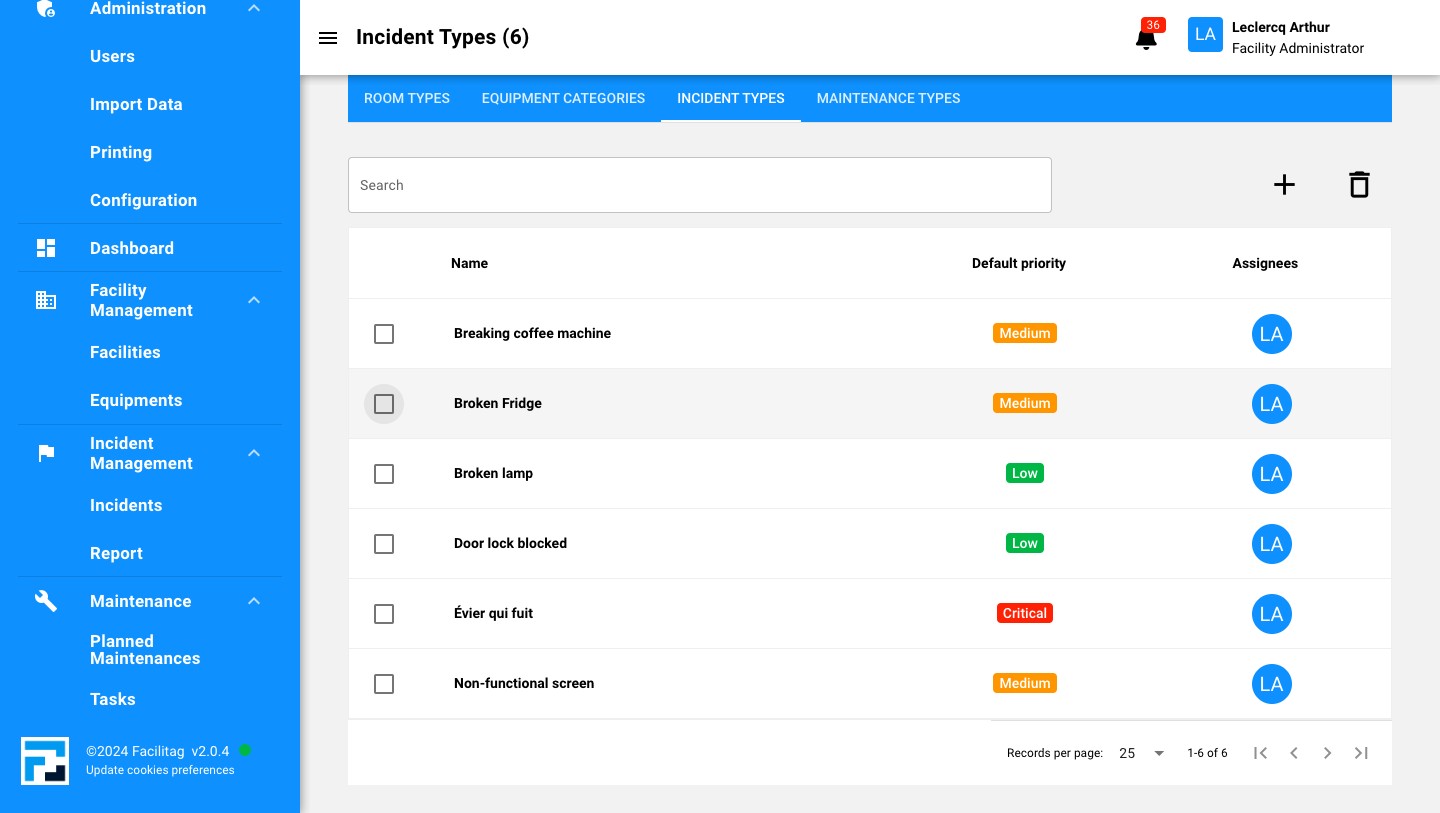
17
Select the right incident type
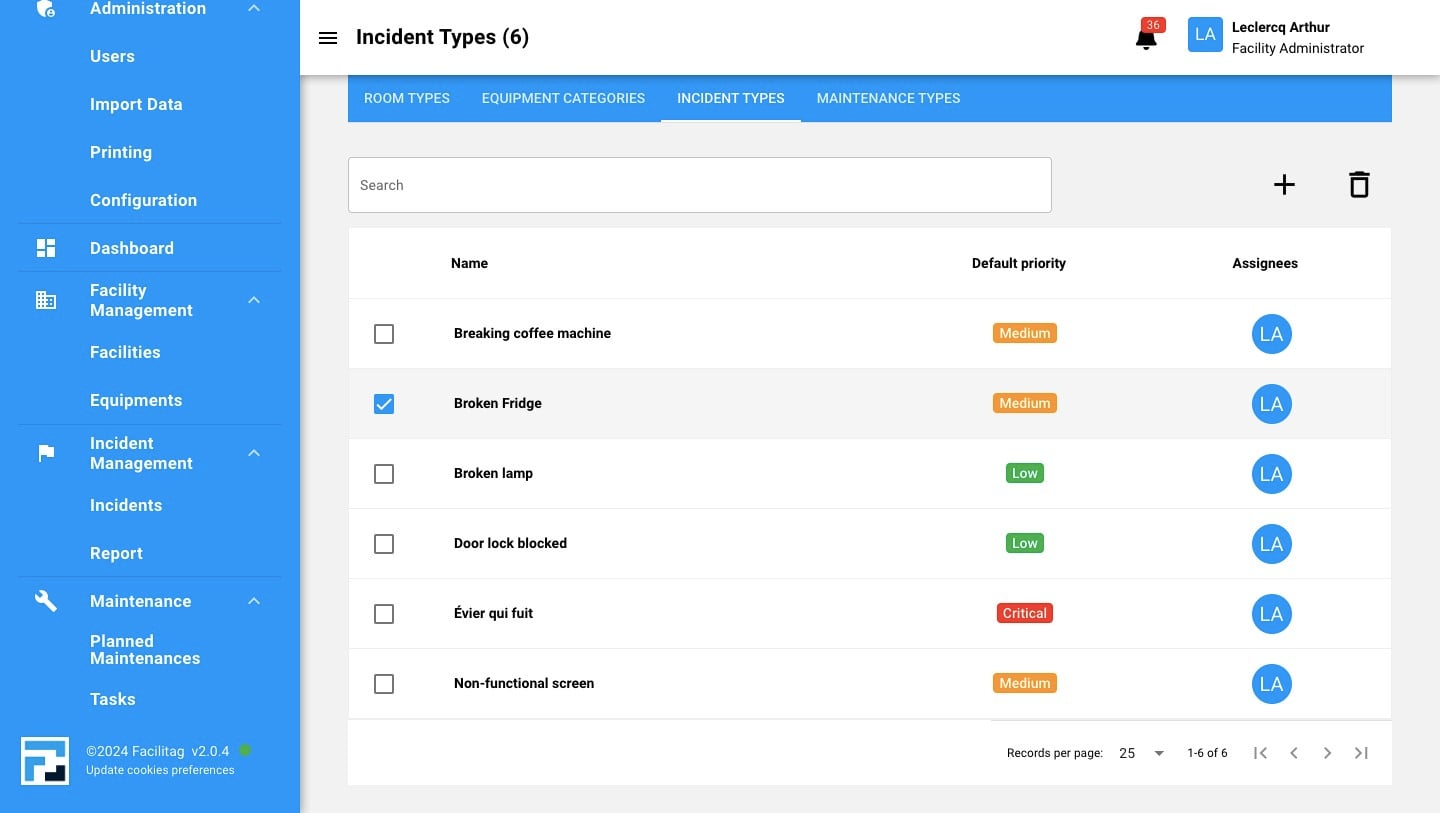
18
Click this icon
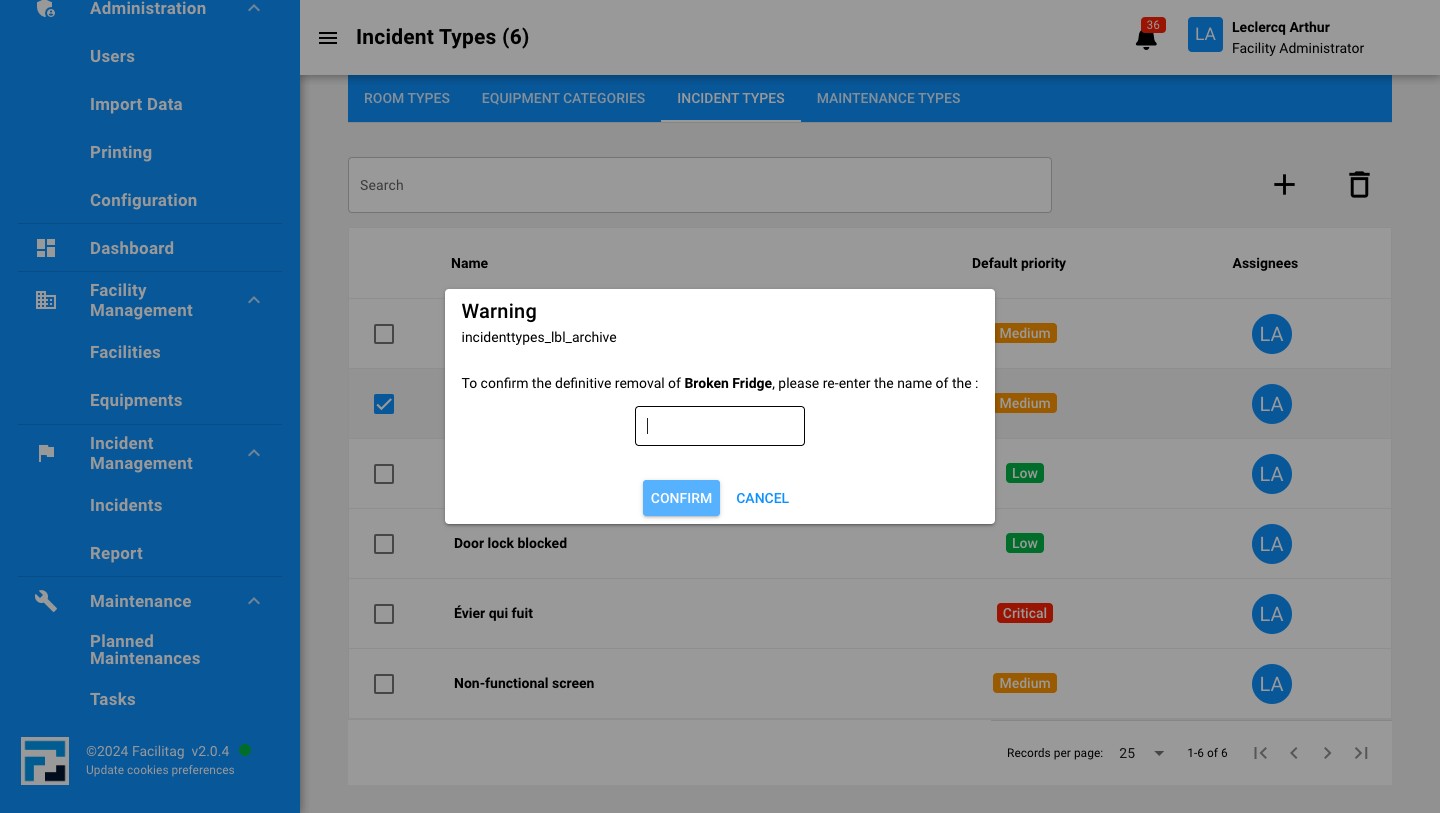
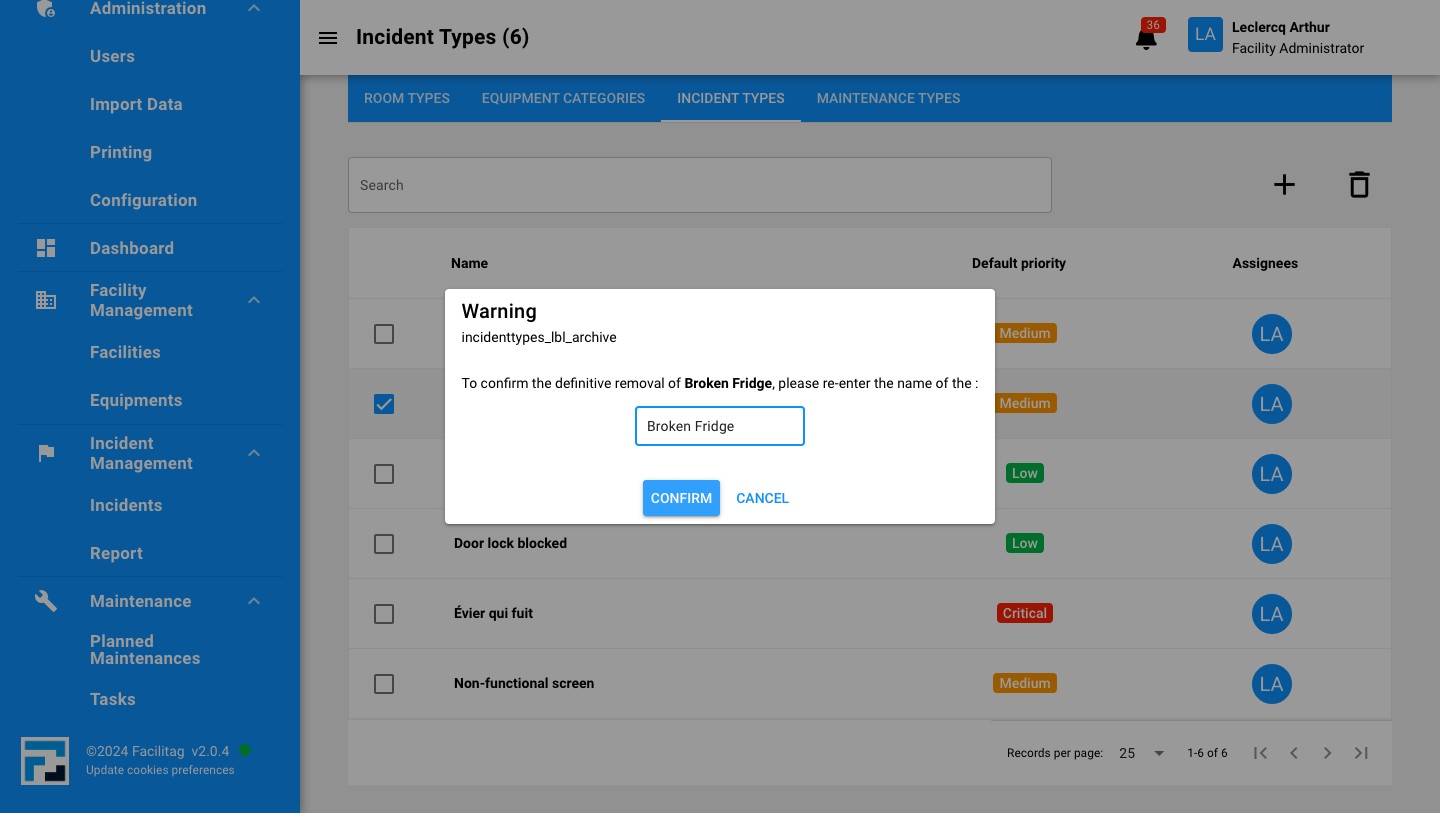
19
Confirm the definitive removal
20
Click on "Confirm"
How to search update an incident type
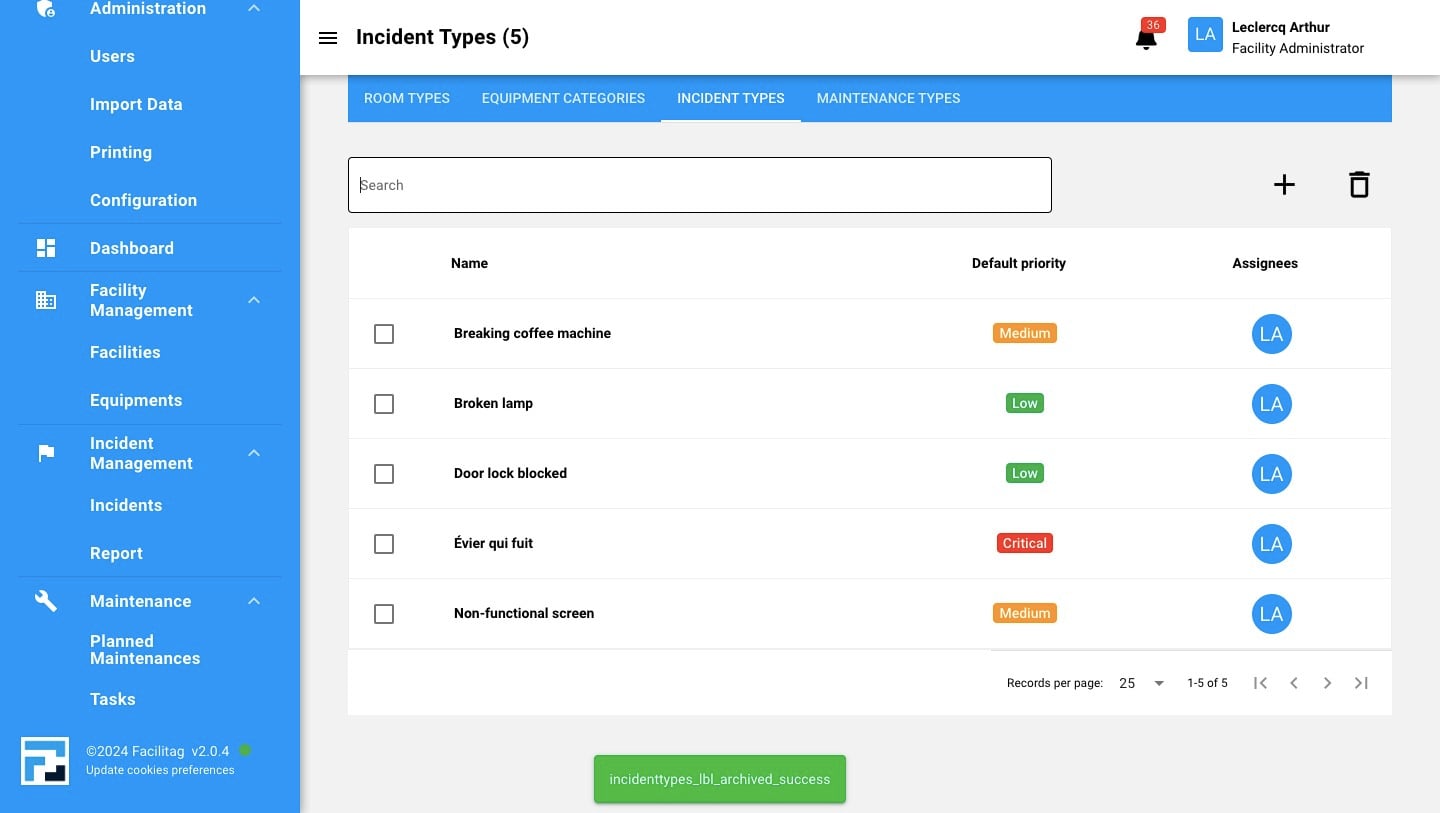
21
Click here
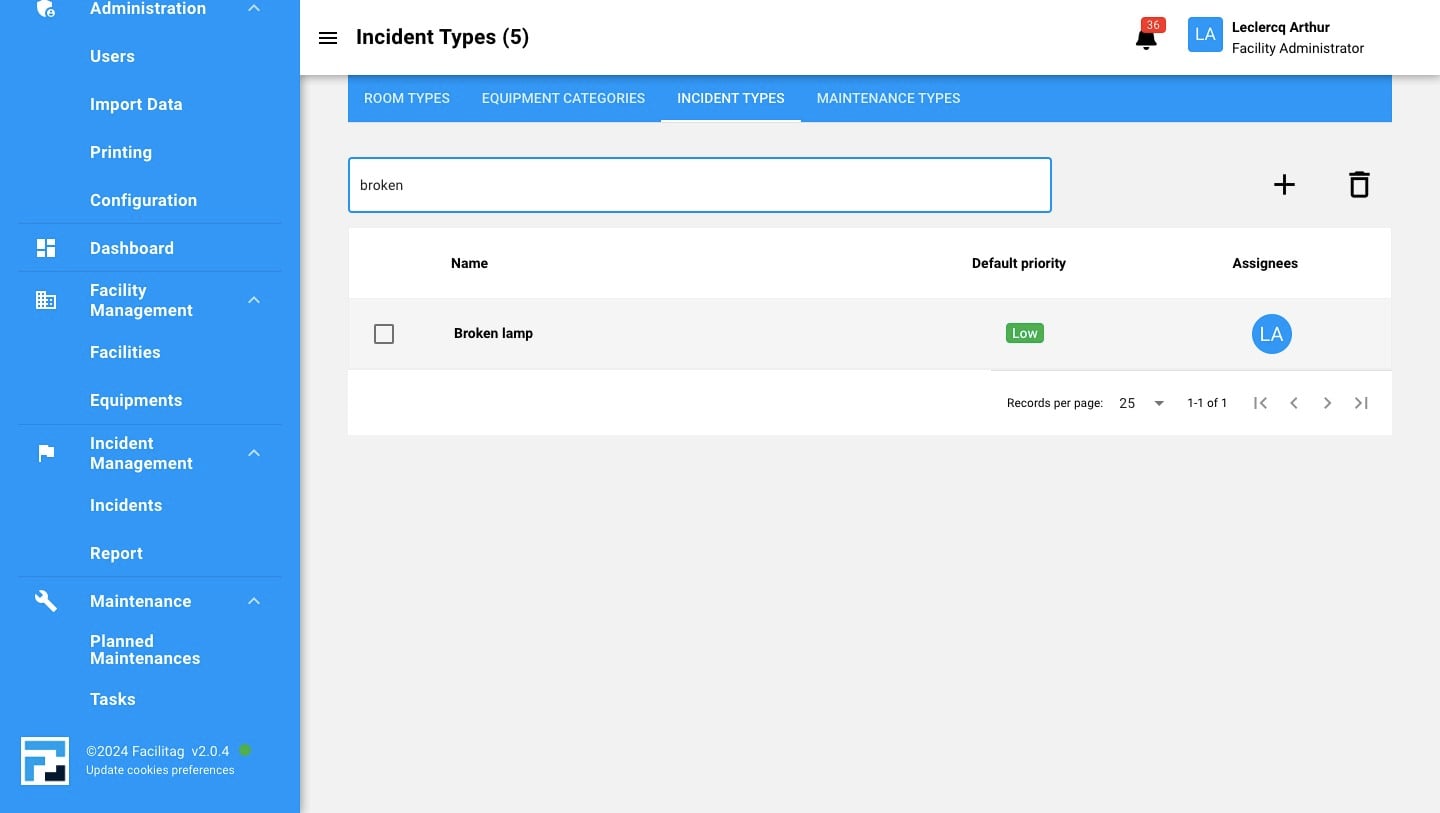
22
Search for the right incident type and click on it
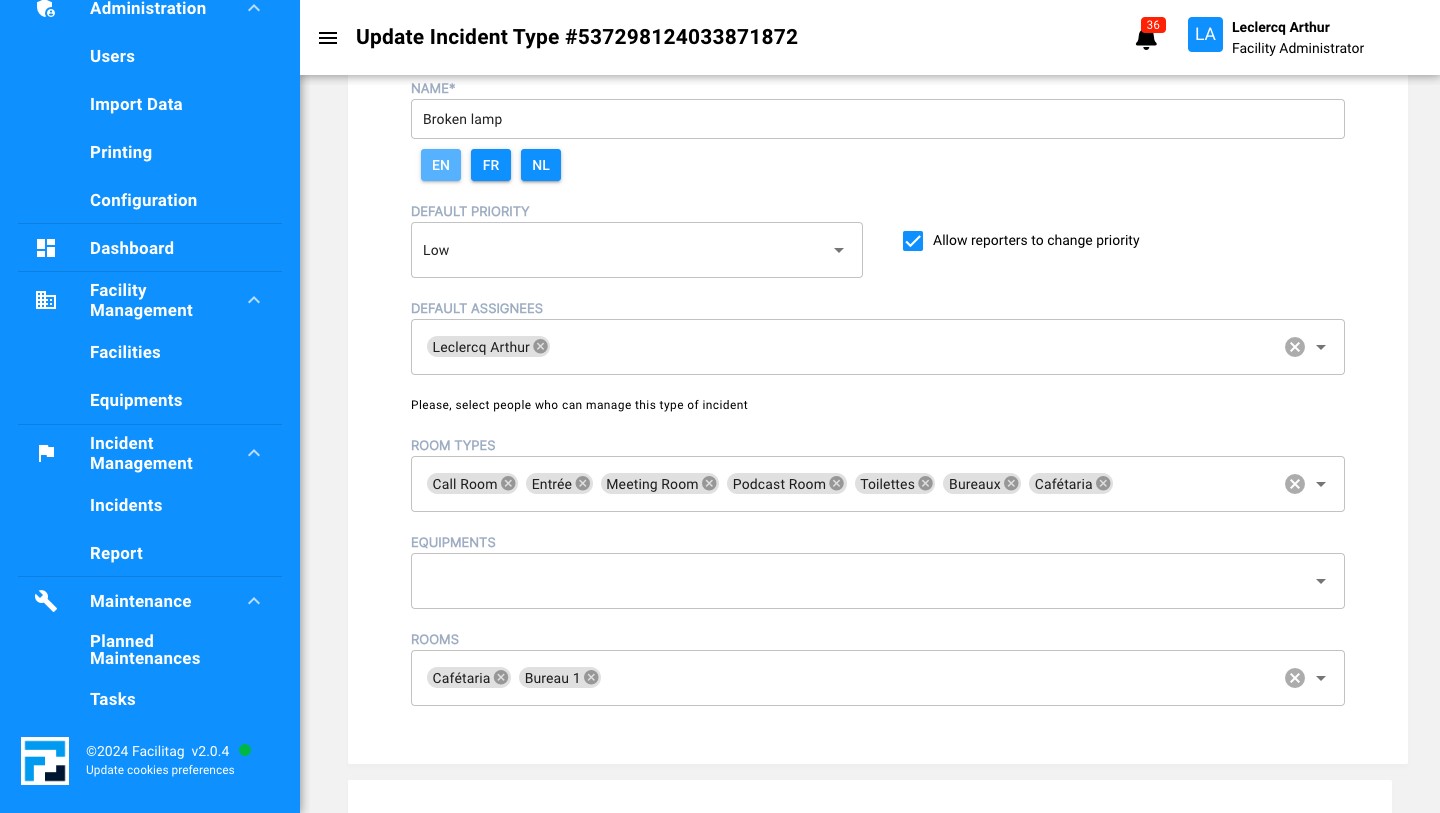
23
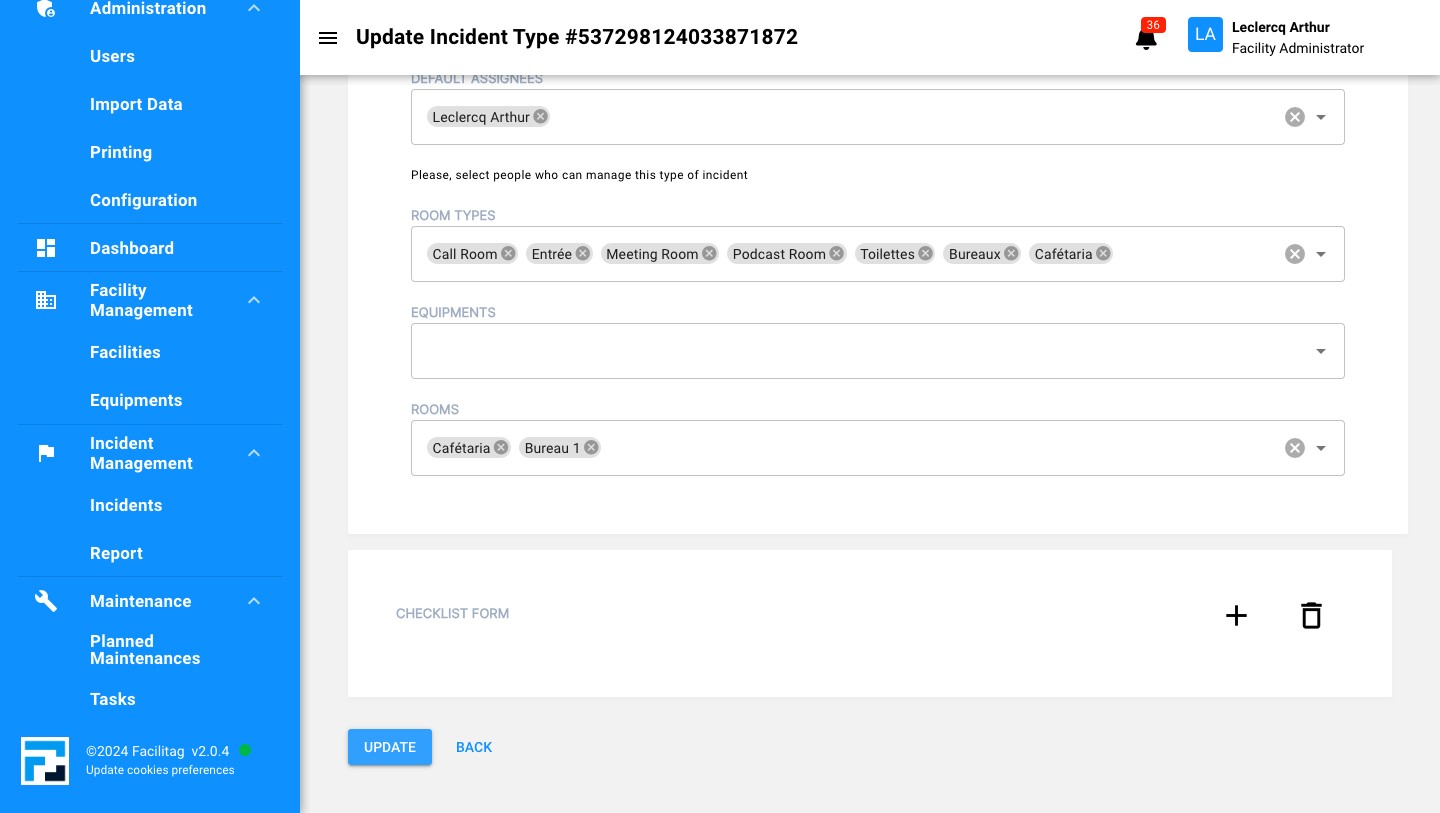
Update any information
24
Click on "UPDATE" to save settings
25
Done 🚀