Configure a Room type
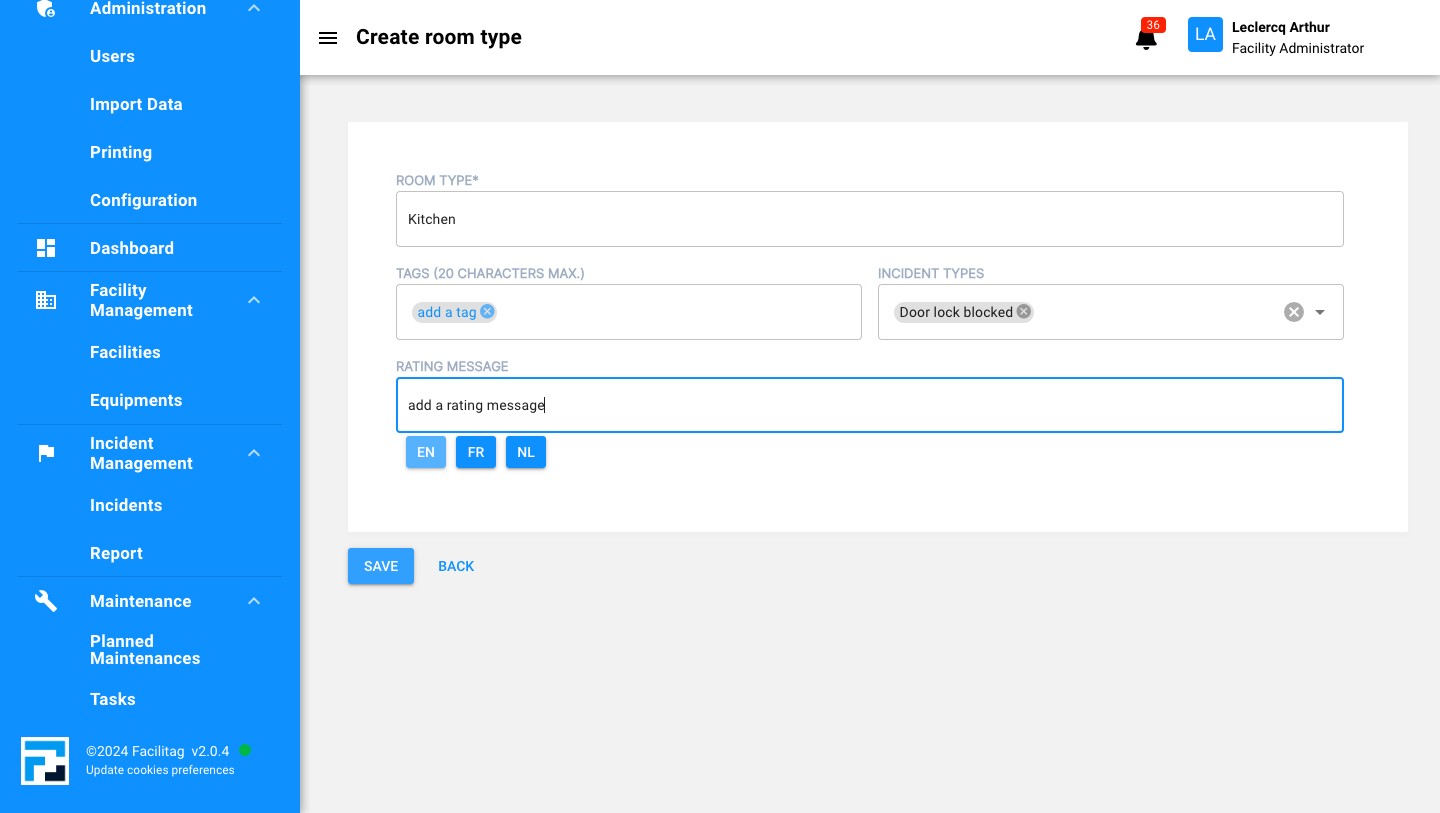
How to Create a Room type
1
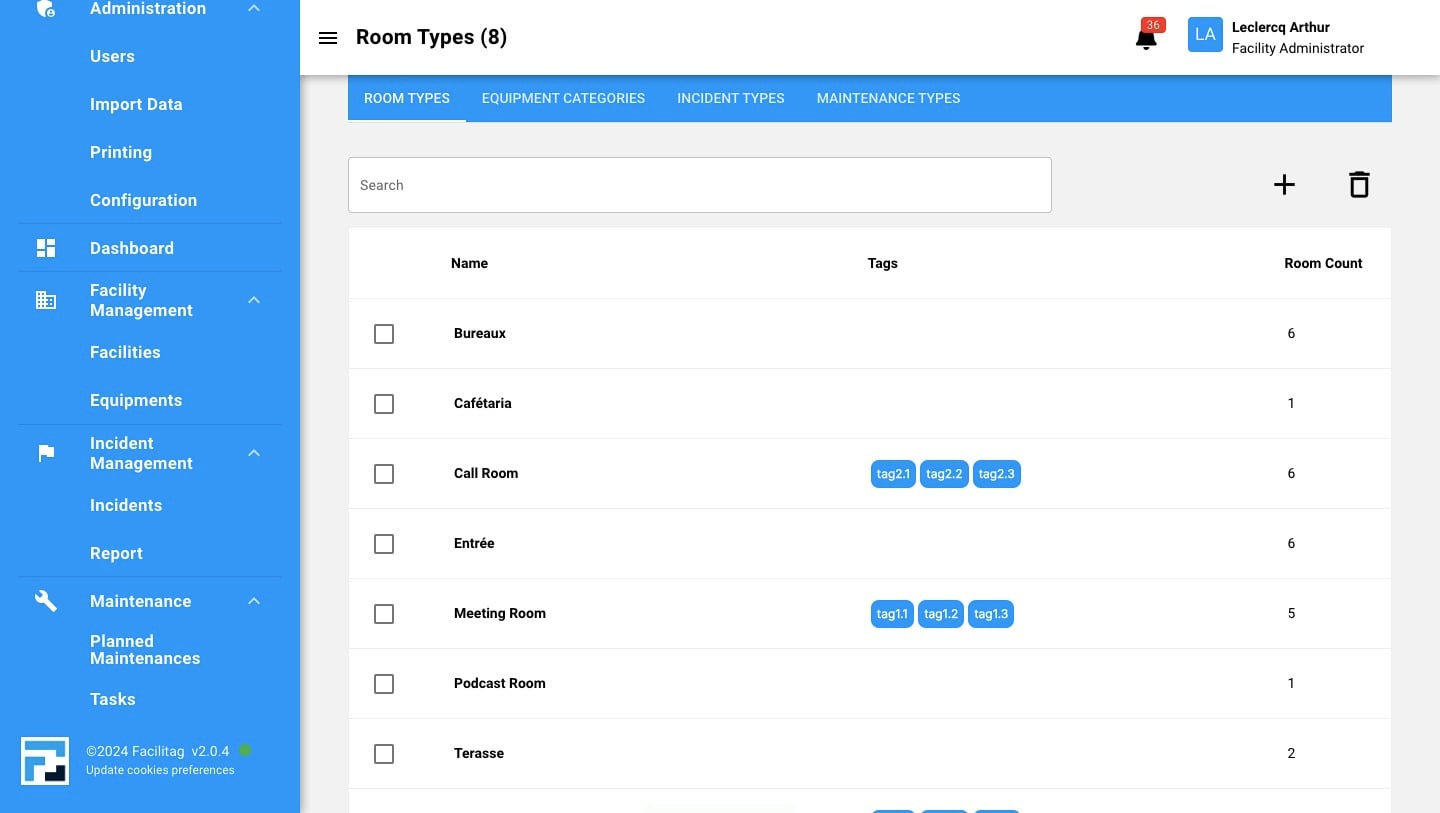
Click on "Configuration"
2
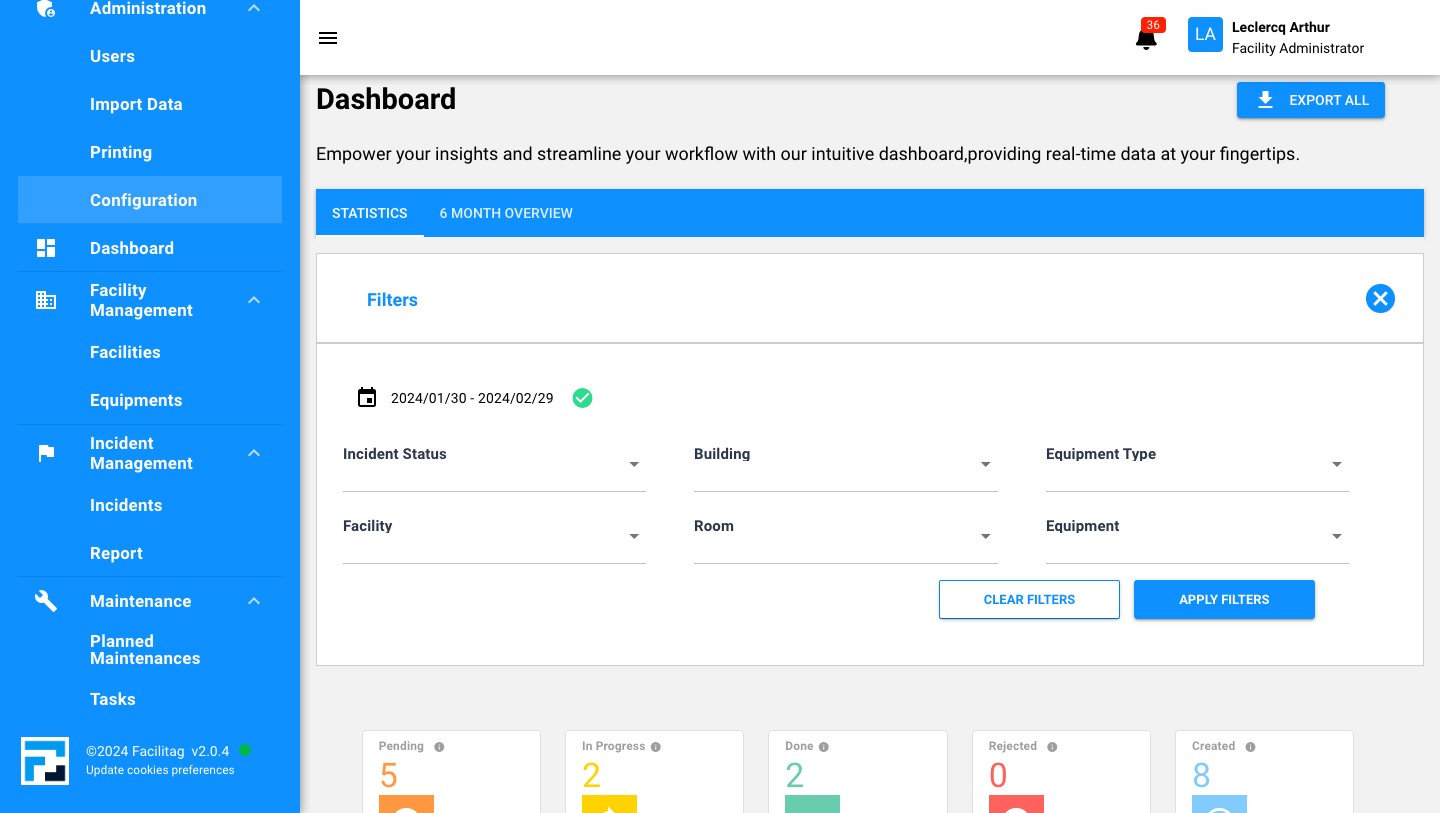
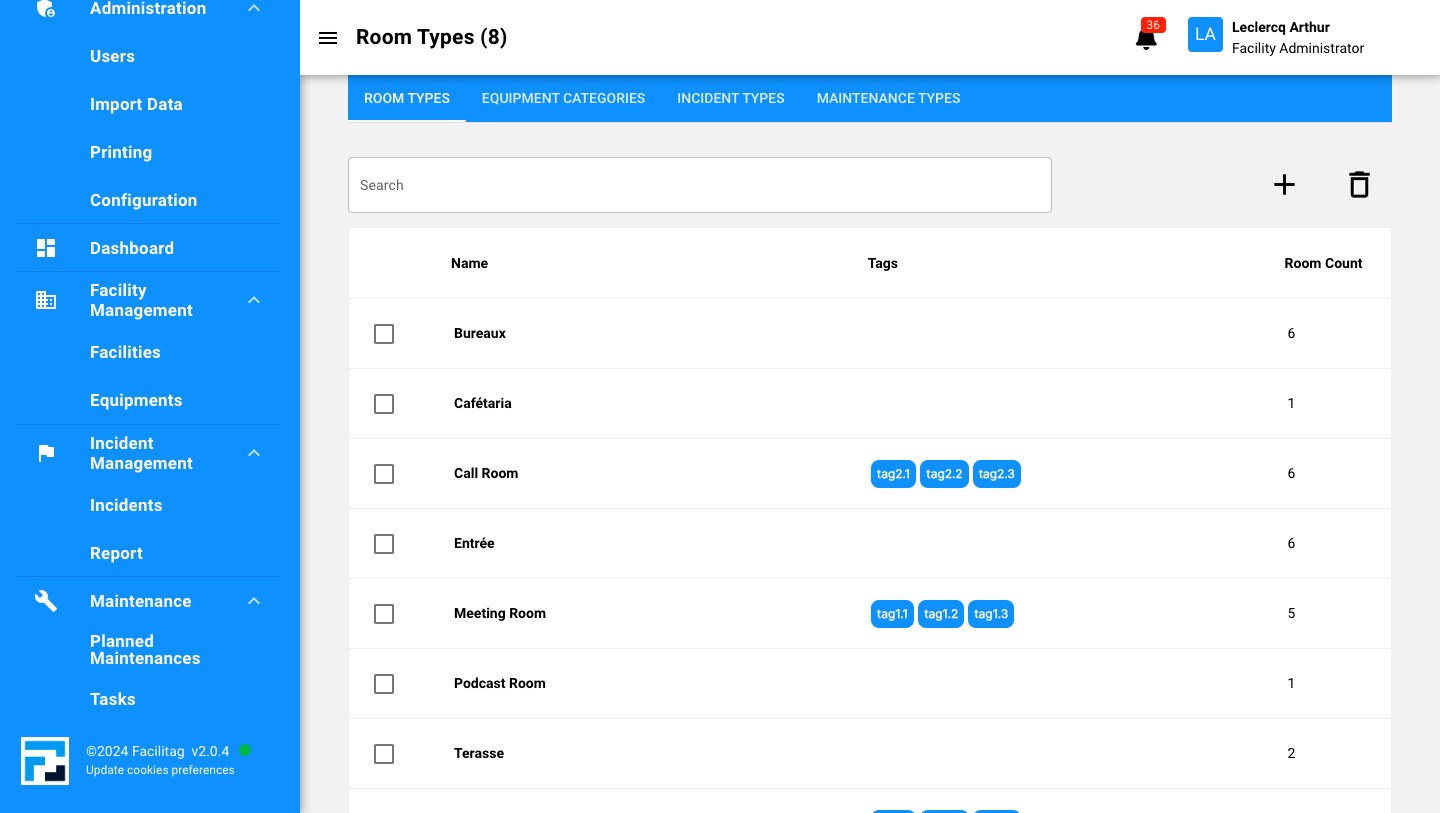
Click on the "Plus" icon
3
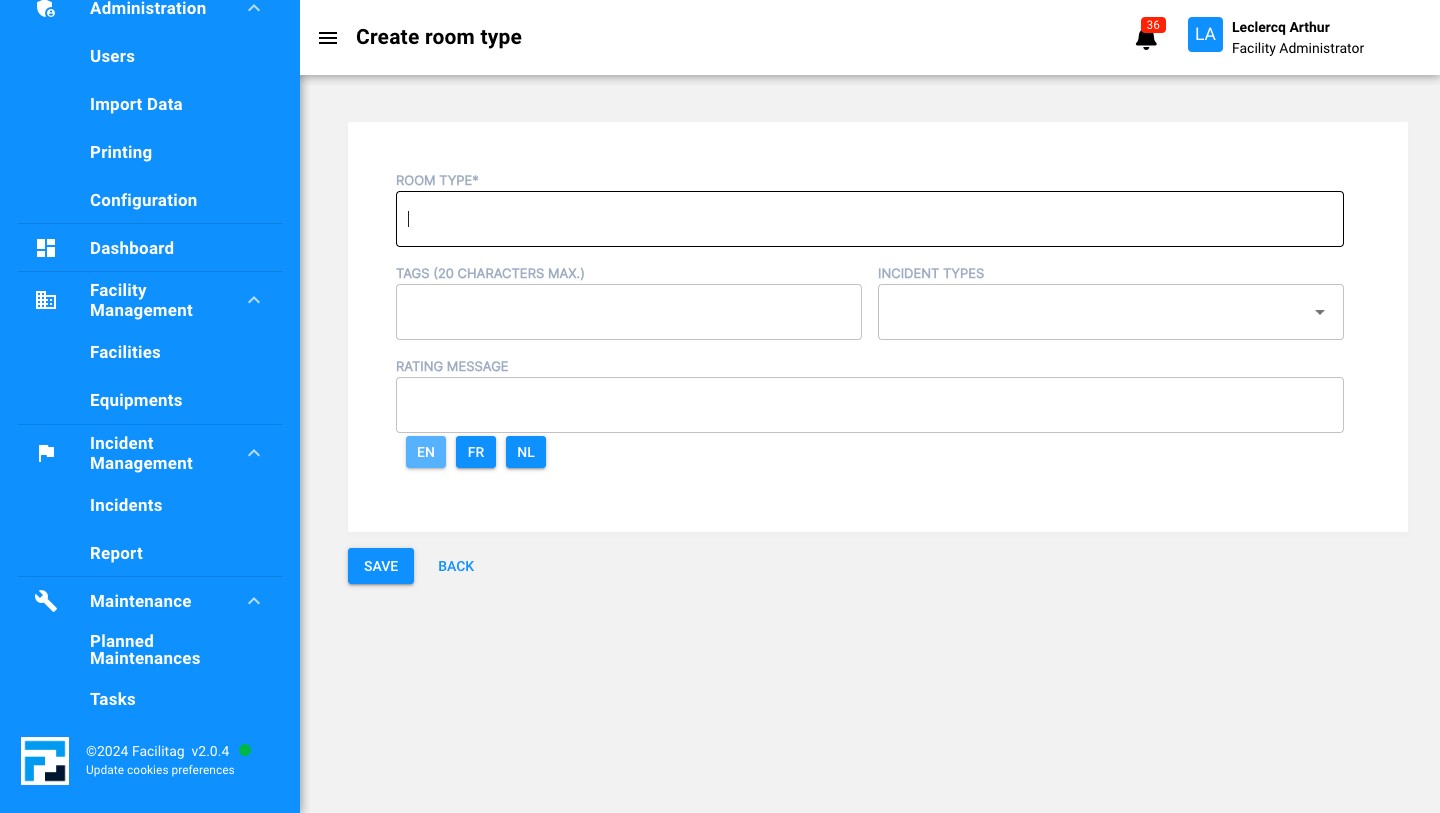
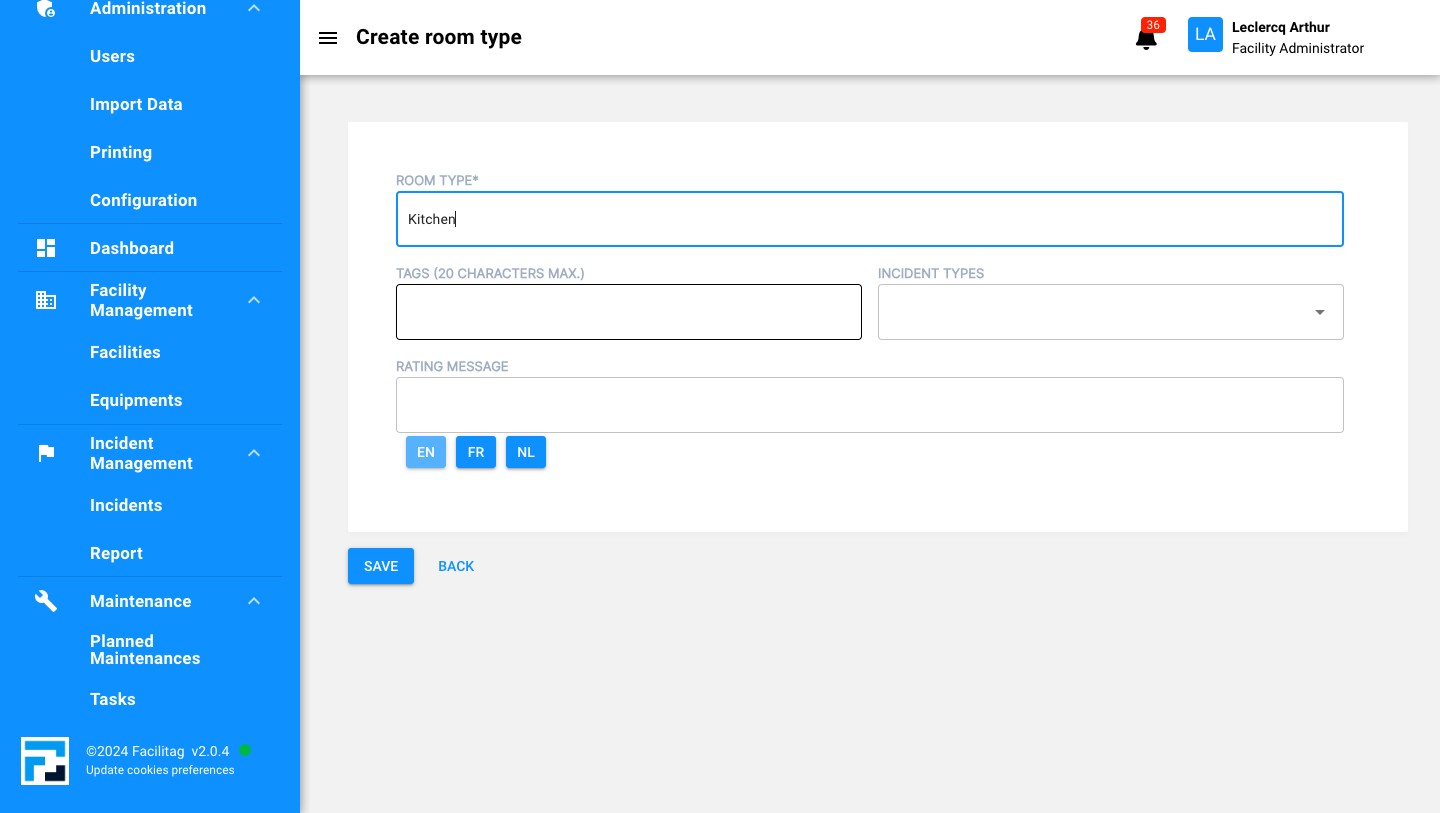
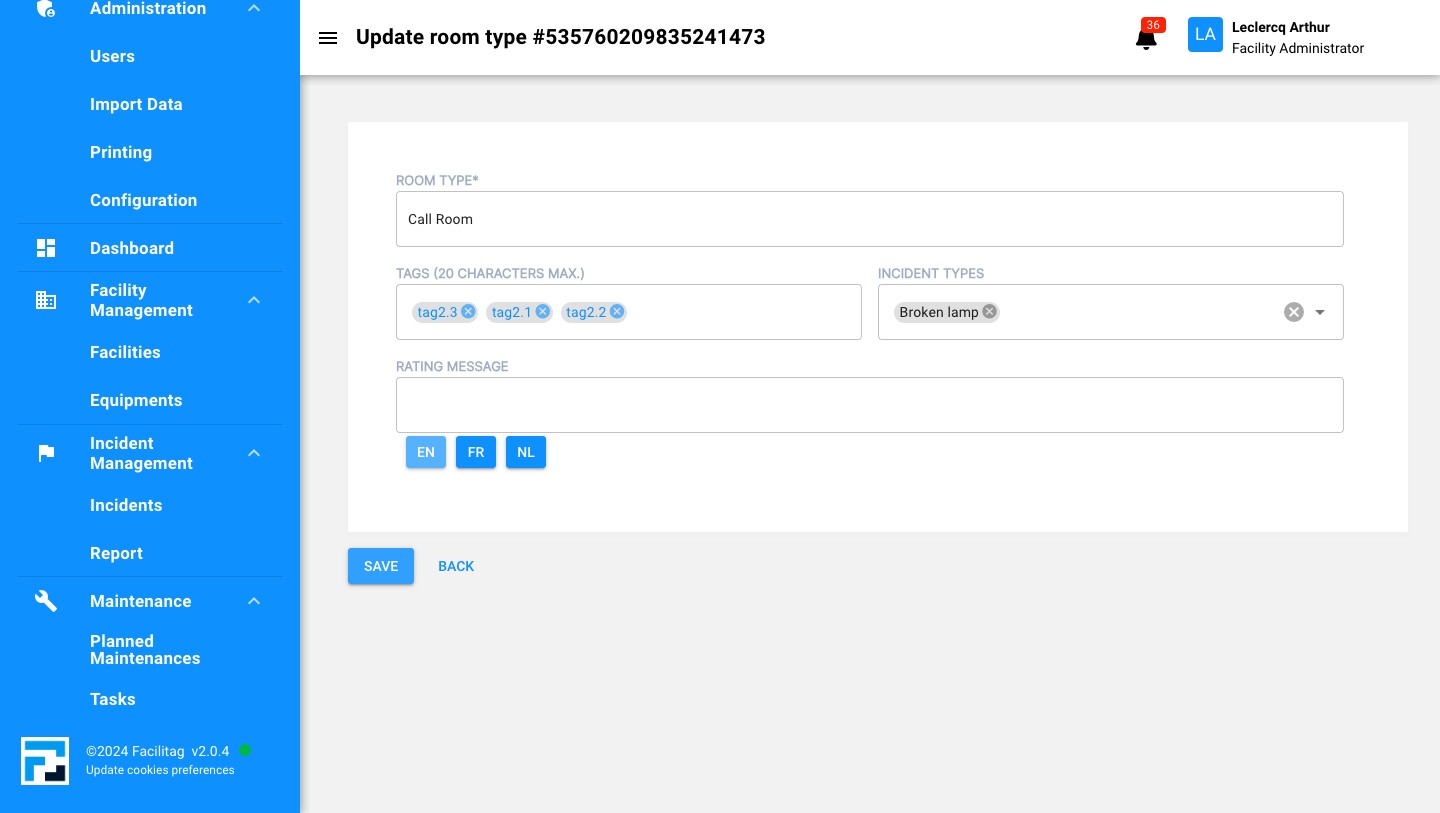
Add the name of the Room Type
4
Add Tags here
5
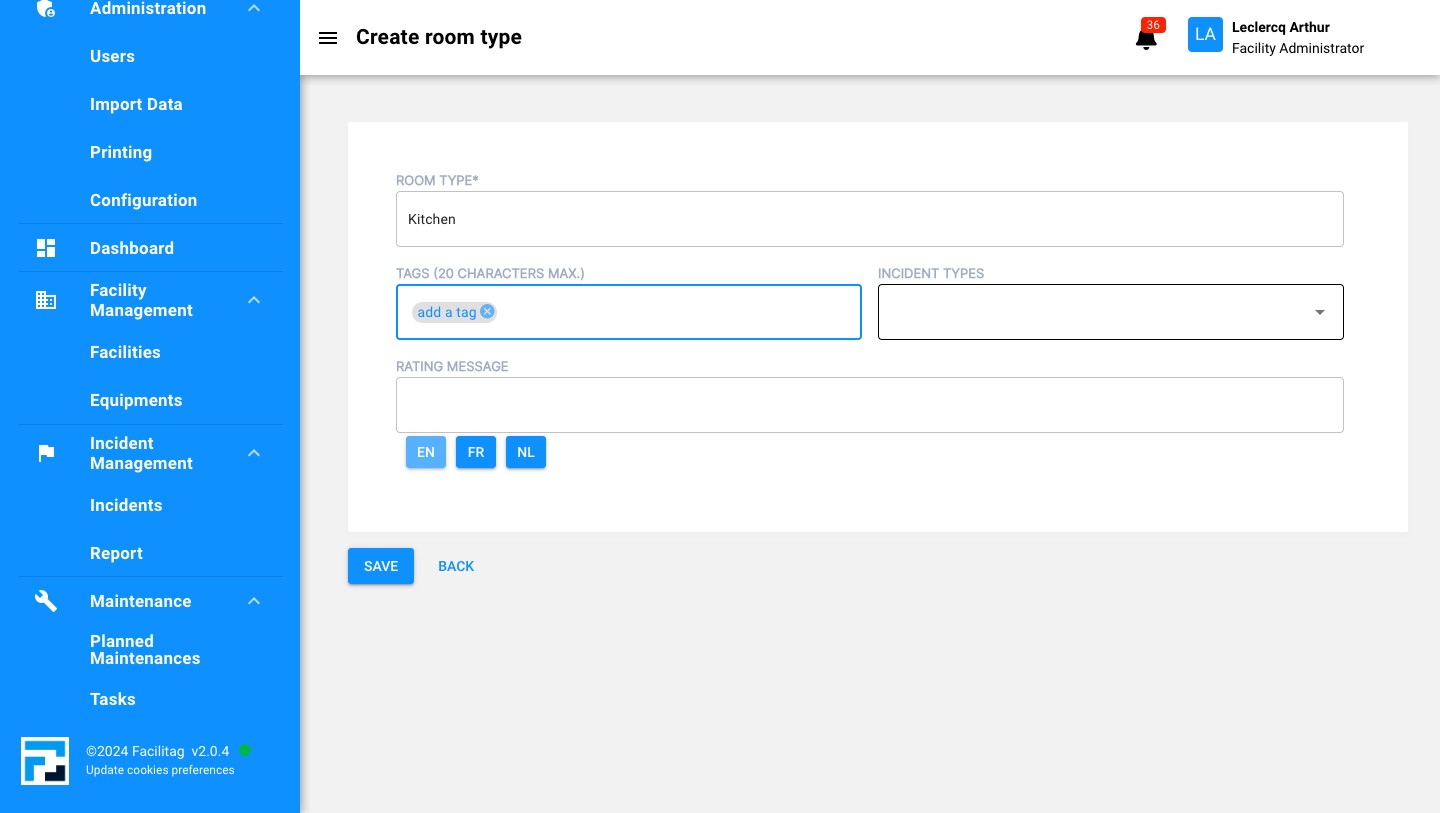
Link the Room type to an incident type if needed
6
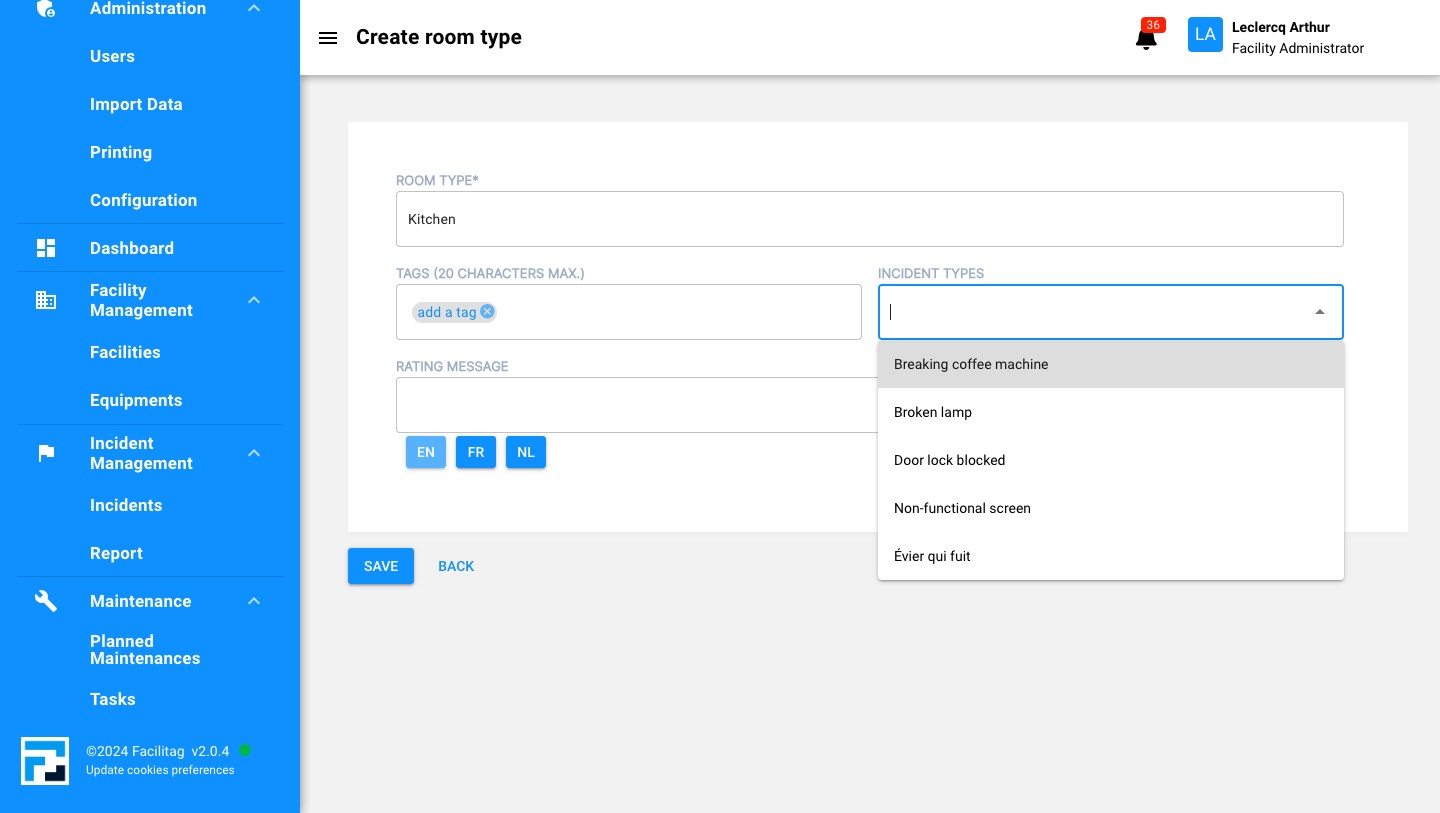
Choose the Incident type you want to link to the room type
7
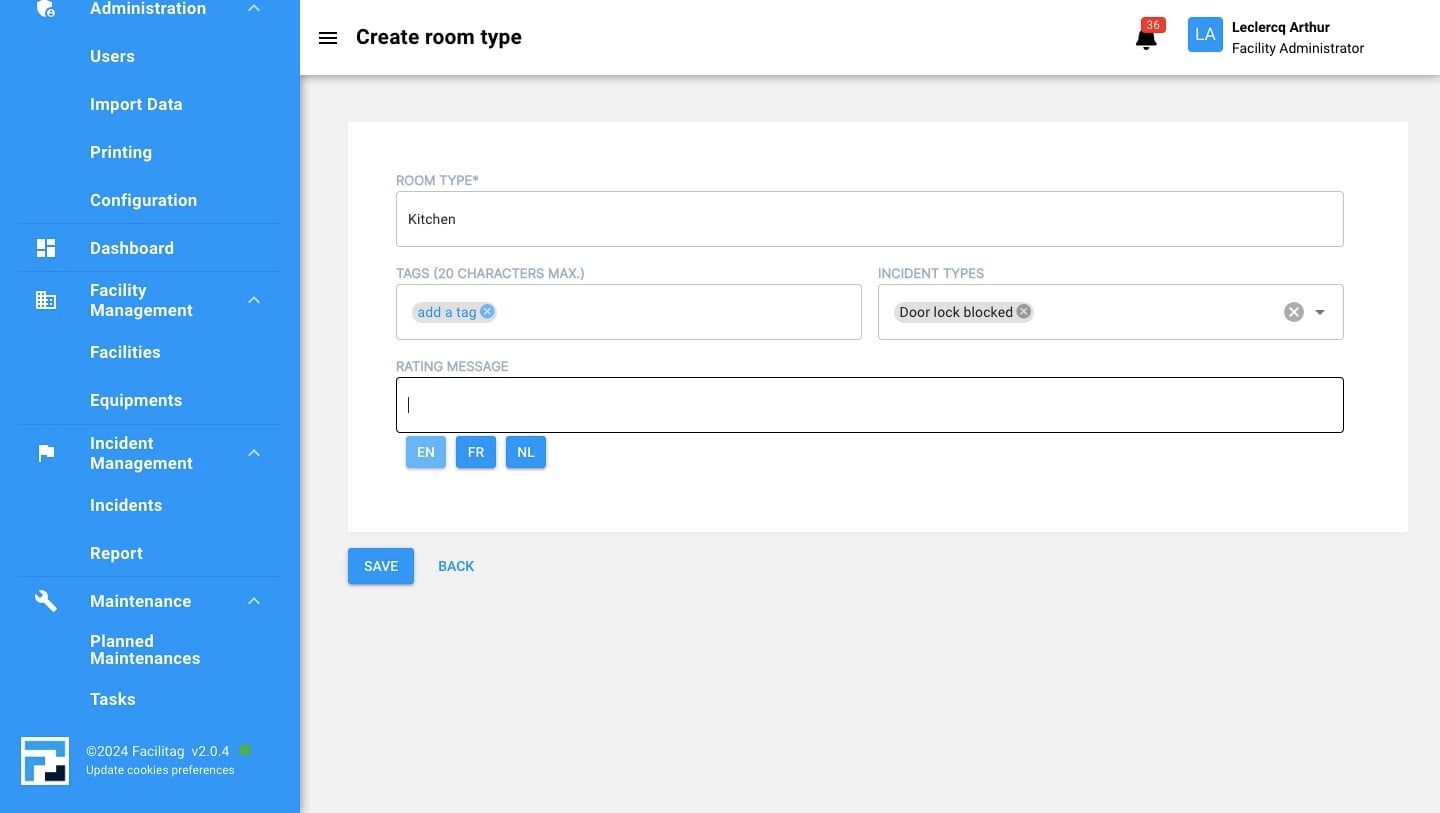
Add a Rating message here
8
Save the Updates
How to Delete a Room Type
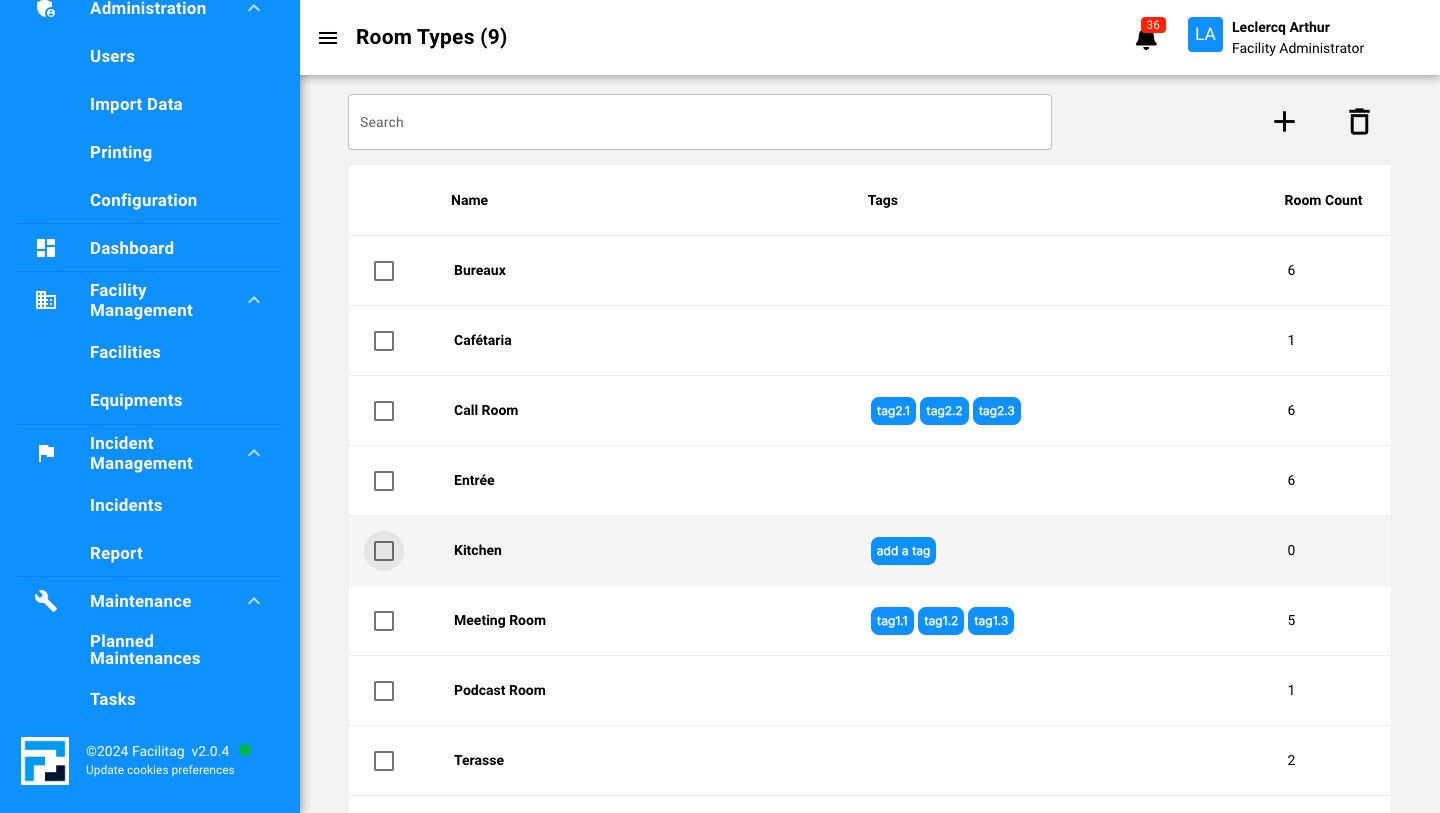
9
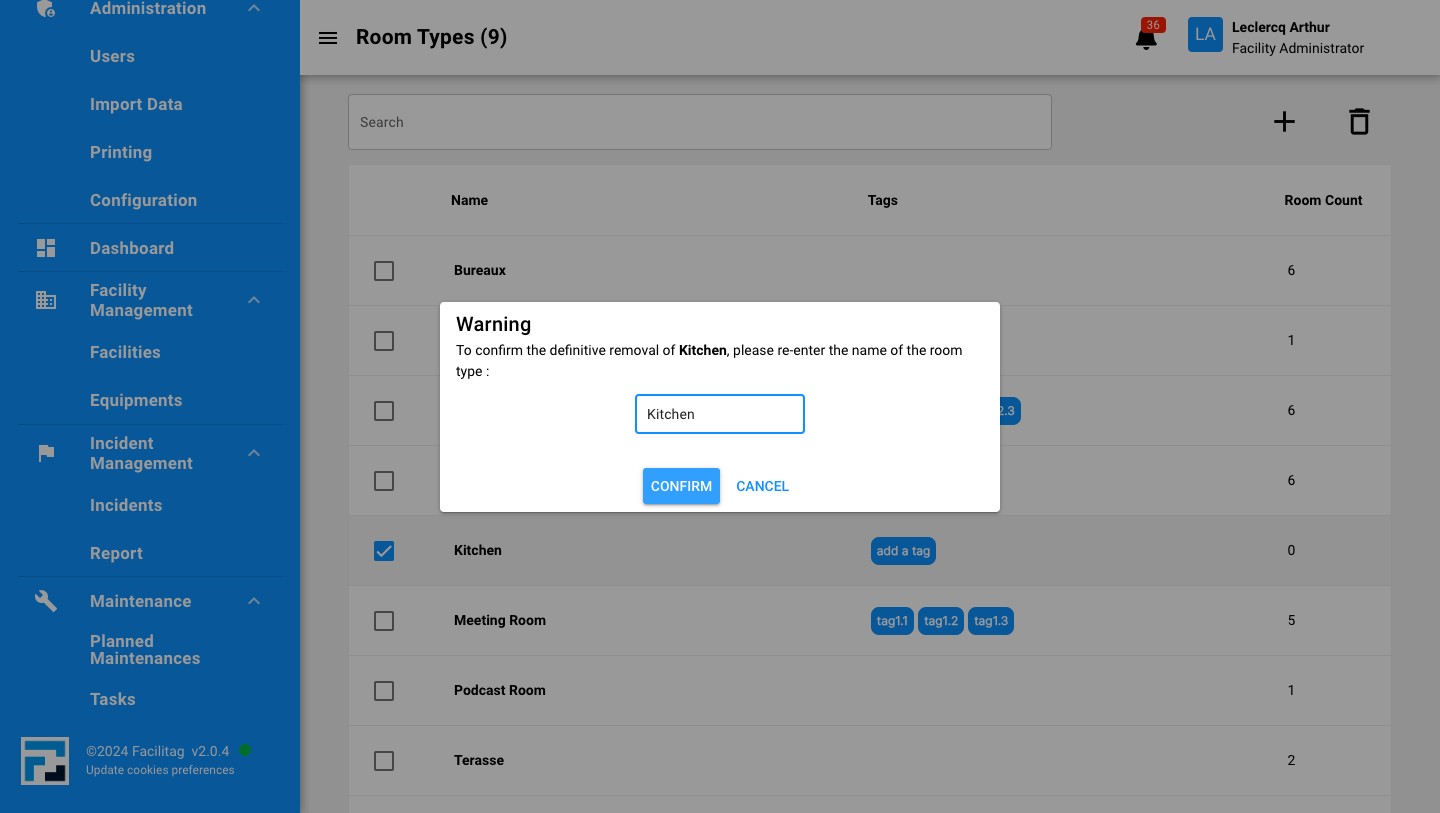
Click this icon to select the Room type to delete
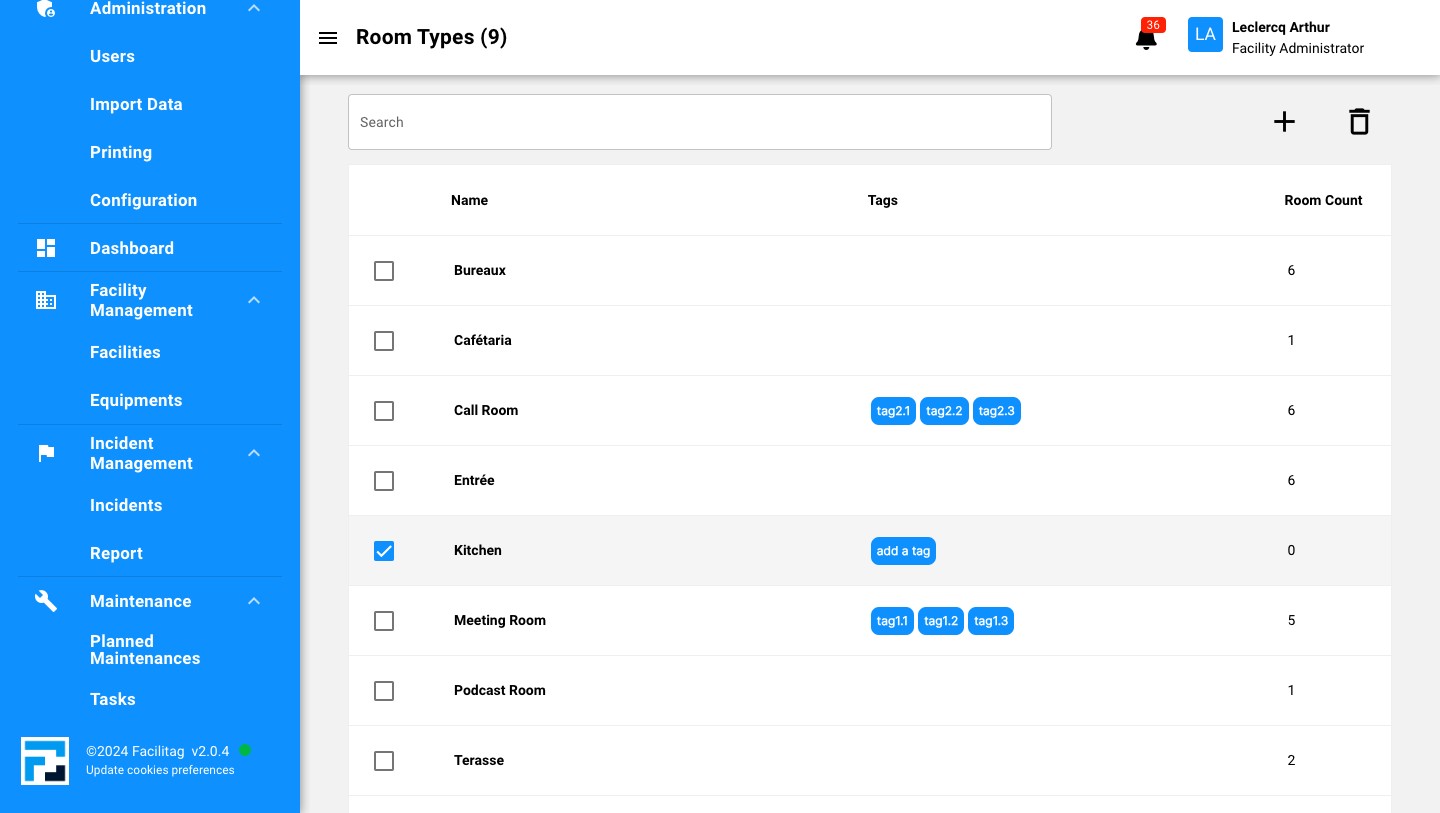
10
Click on the "Bin" icon
11
Confirm the Removal of the Room type
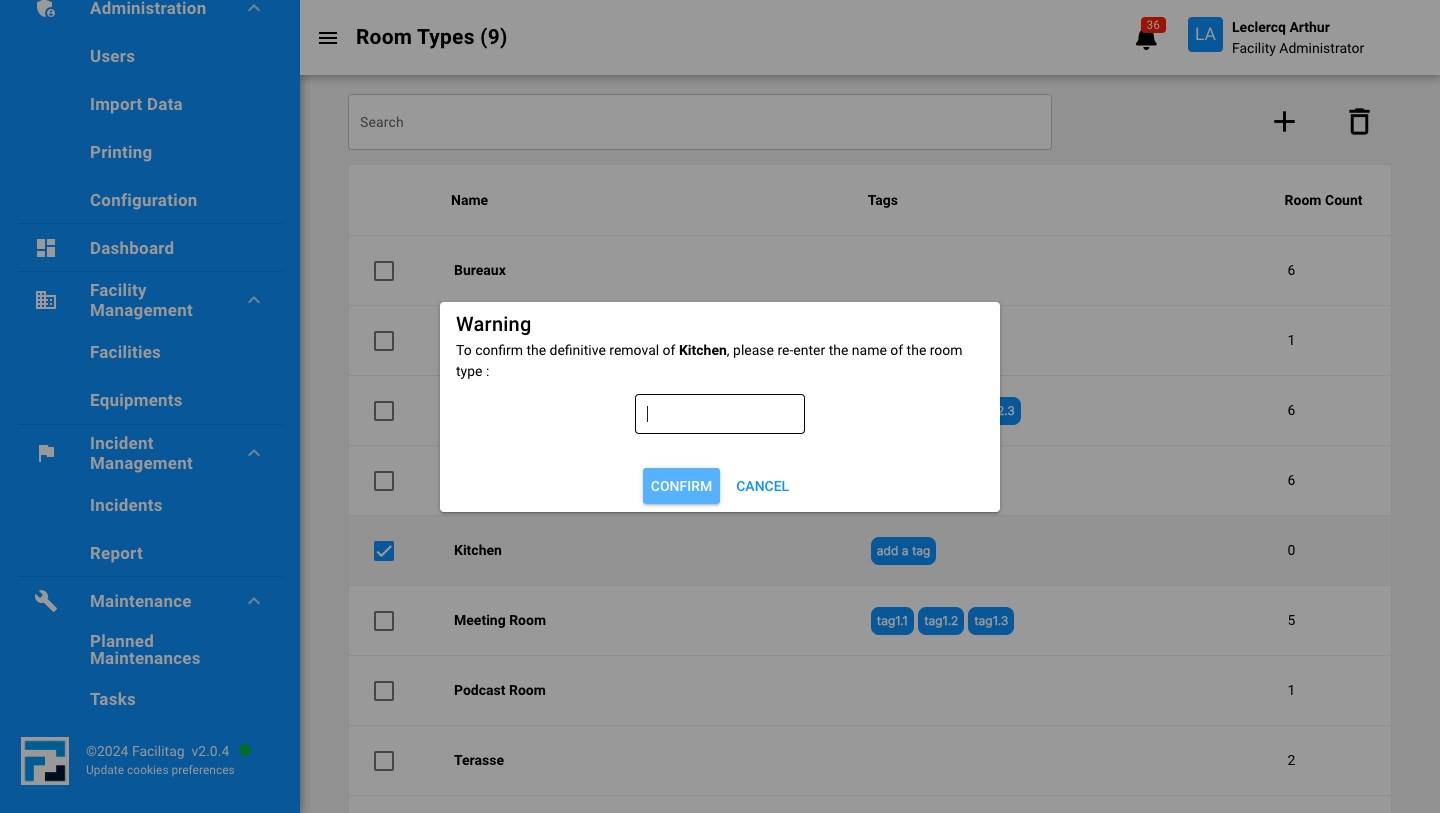
12
Click on "Confirm"
How to update Information linked to a Room Type
13
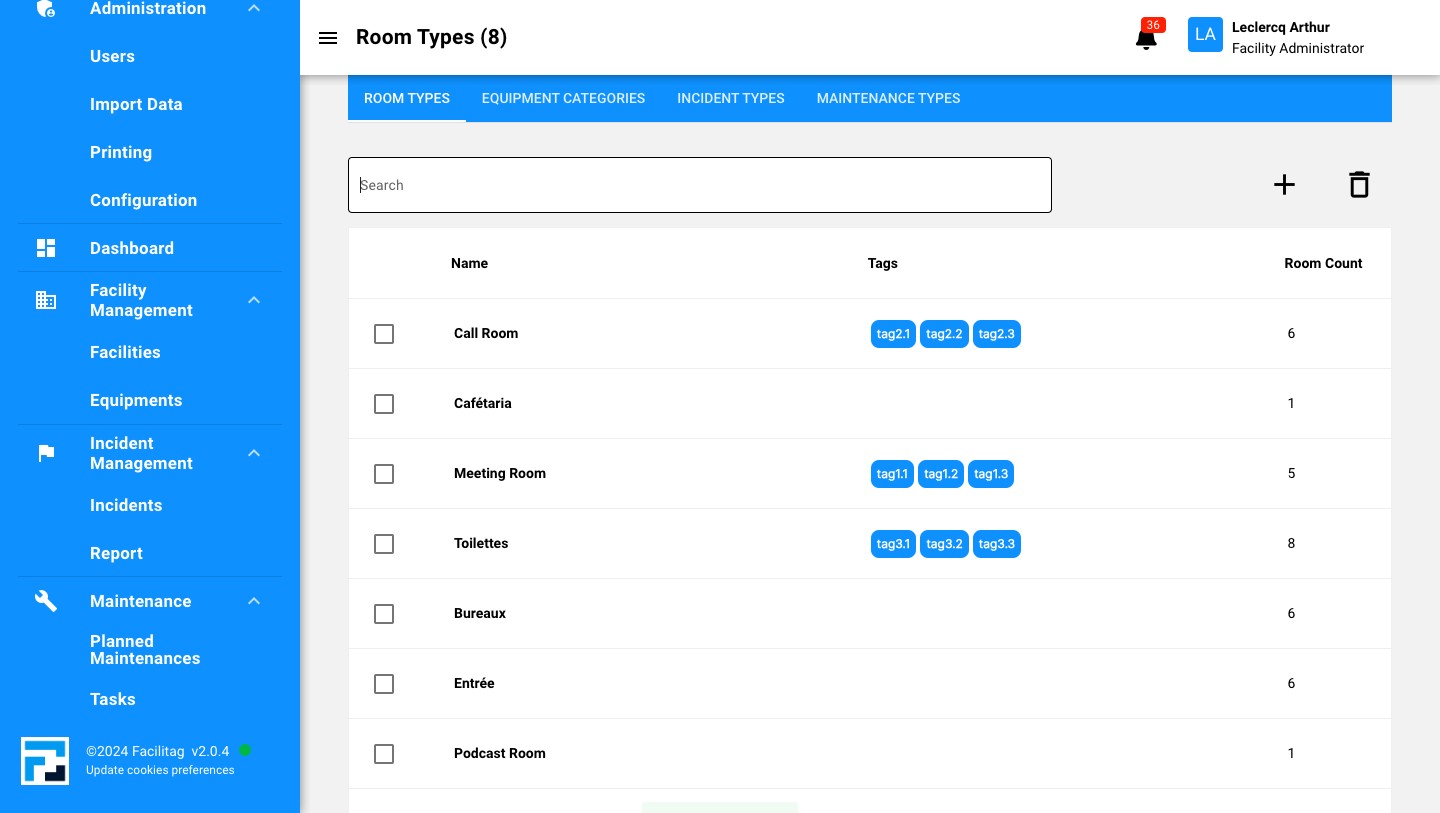
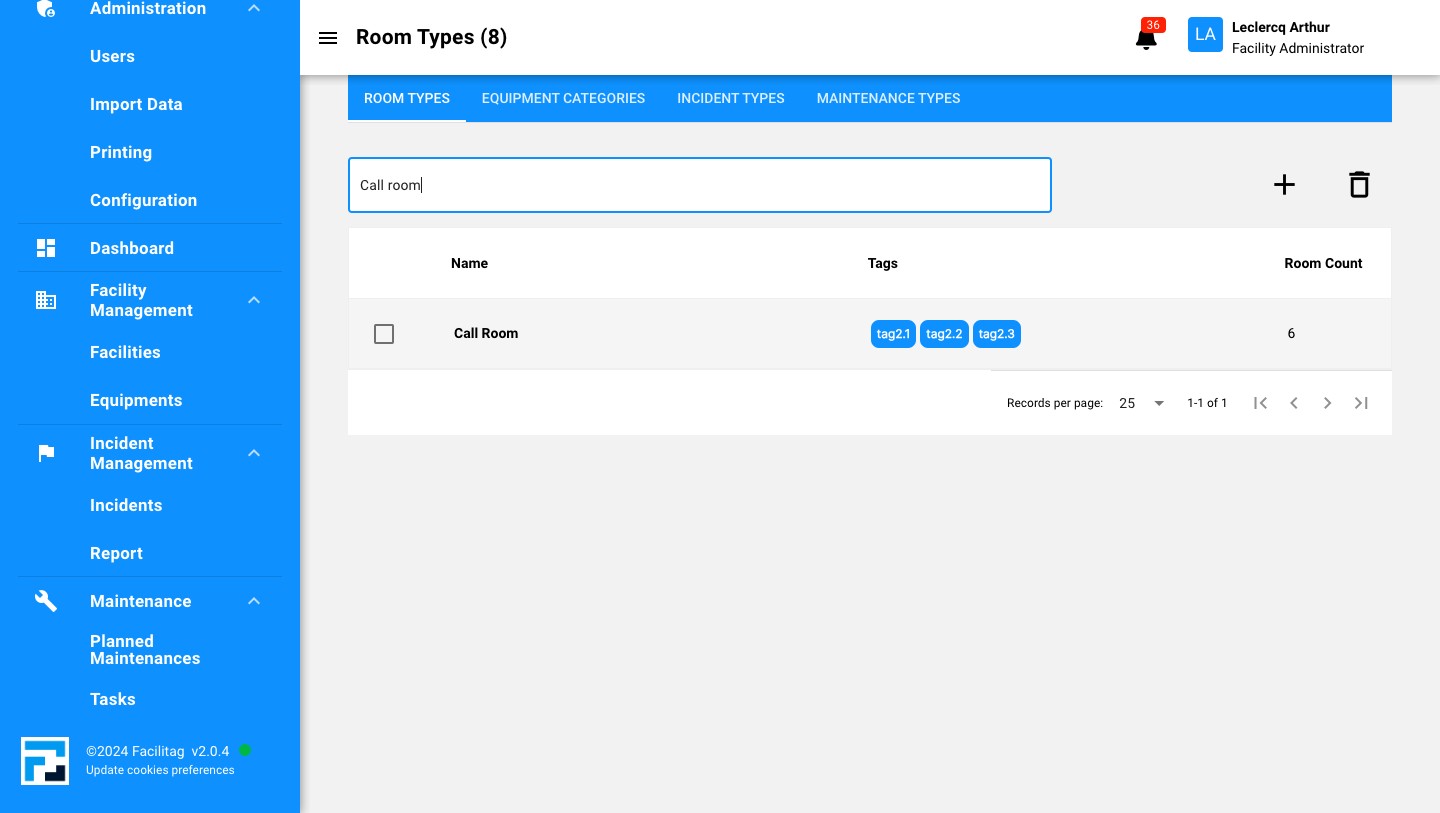
Search for the Room Type using the Search Bar
14
Click on the Room type
15
Update information and save them
16
Done 🚀